How to create a folder in Telegram
In Telegram, you can put the chats you need in their own folder, customize it, and share a collection of groups and channels with a single link.
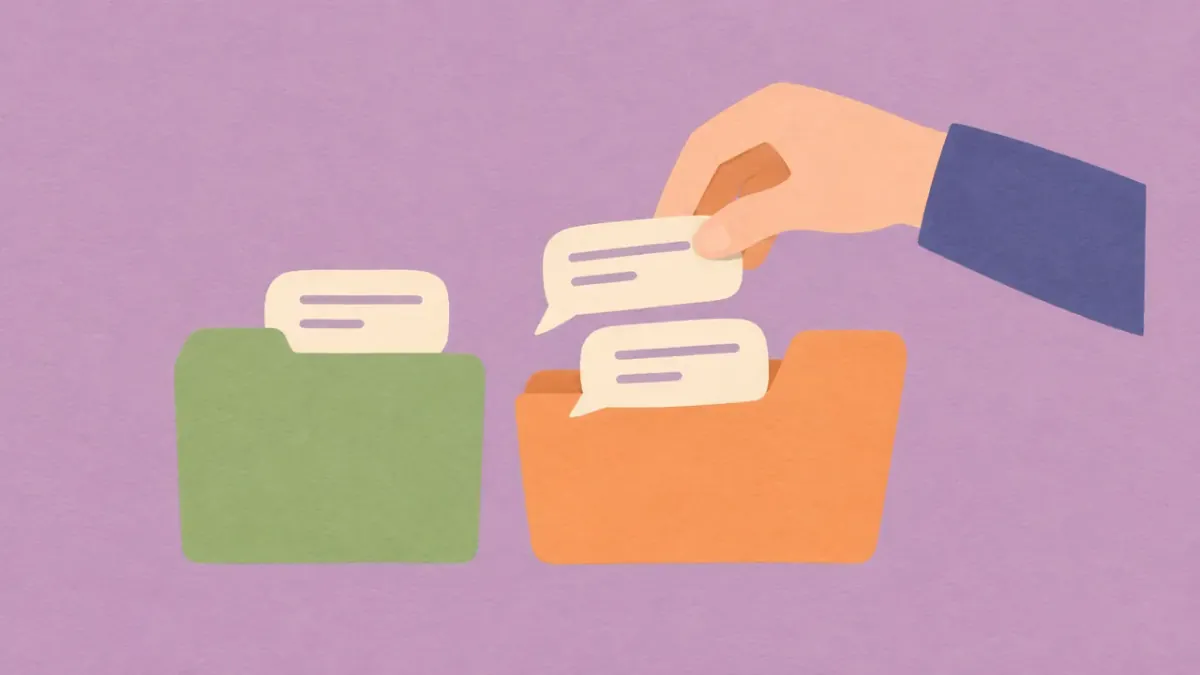
In Telegram’s main chat list, work groups sit alongside personal conversations and channels. You can group your work chats in a separate list to find them faster. Telegram calls this list a folder, and it opens in its own tab.
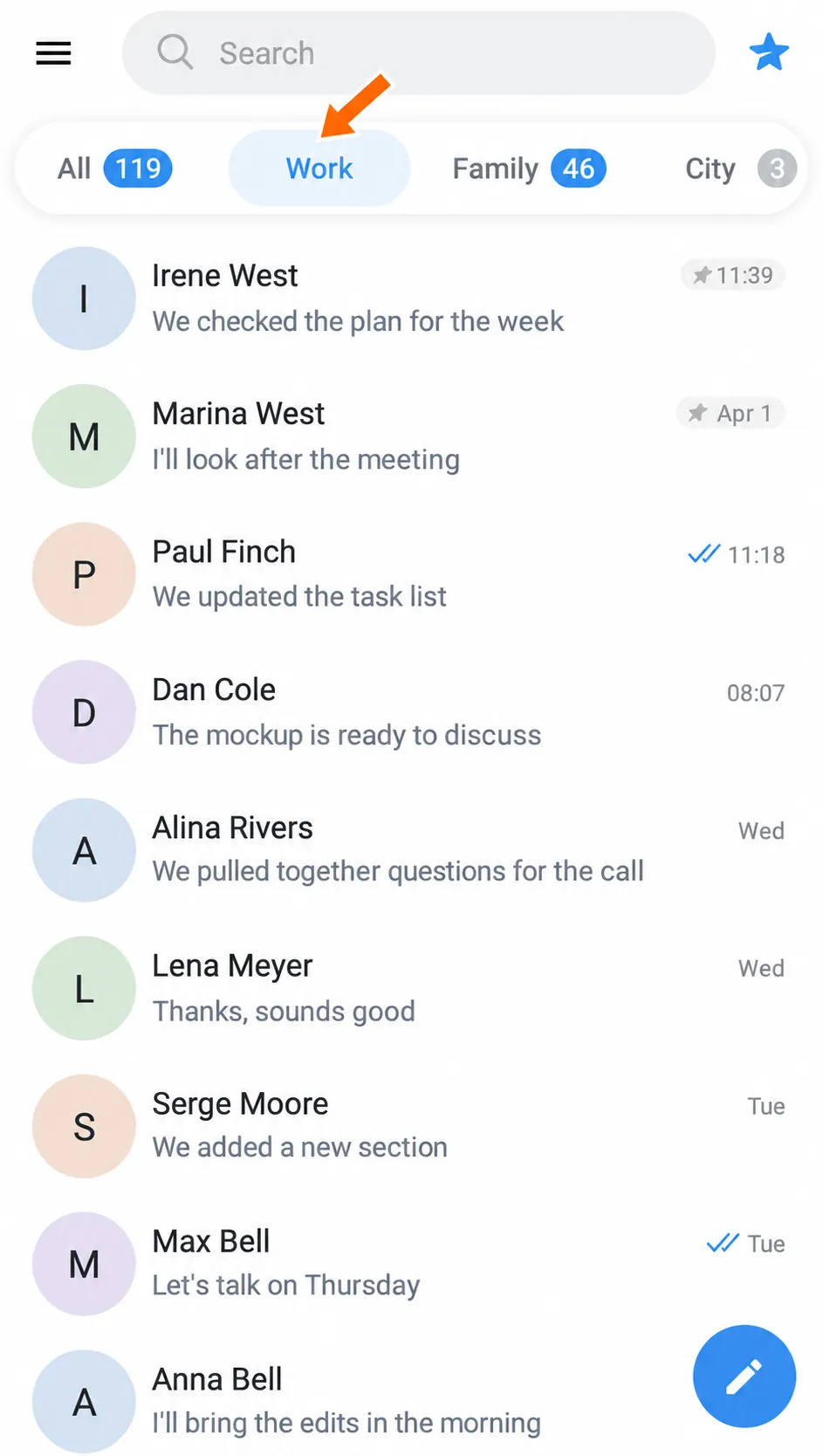
How folders work
- The chat stays where it was. You can still open it from the main chat list or the archive.
- A chat can be in several folders. You can open the same conversation from any of those folders. If you read a message in one folder, it will also be marked as read in the others.
- Folders appear on different devices. A folder you create on your phone will also appear on a computer signed in to the same Telegram account. Secret chats are available only on the device where they started.
How to create a folder
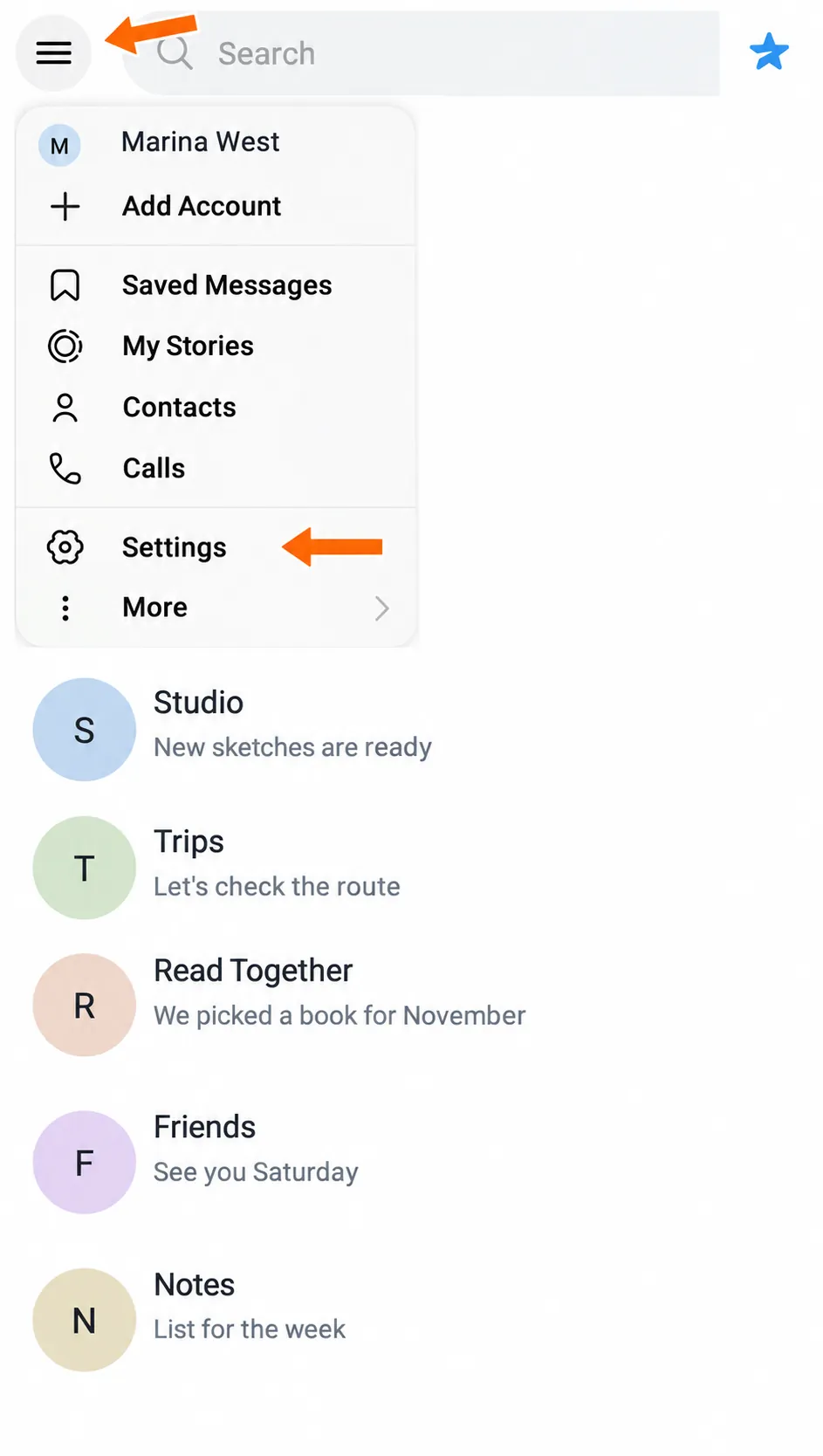
1. In the chat list, open the menu in the top left. Select Settings, then Chat Folders.
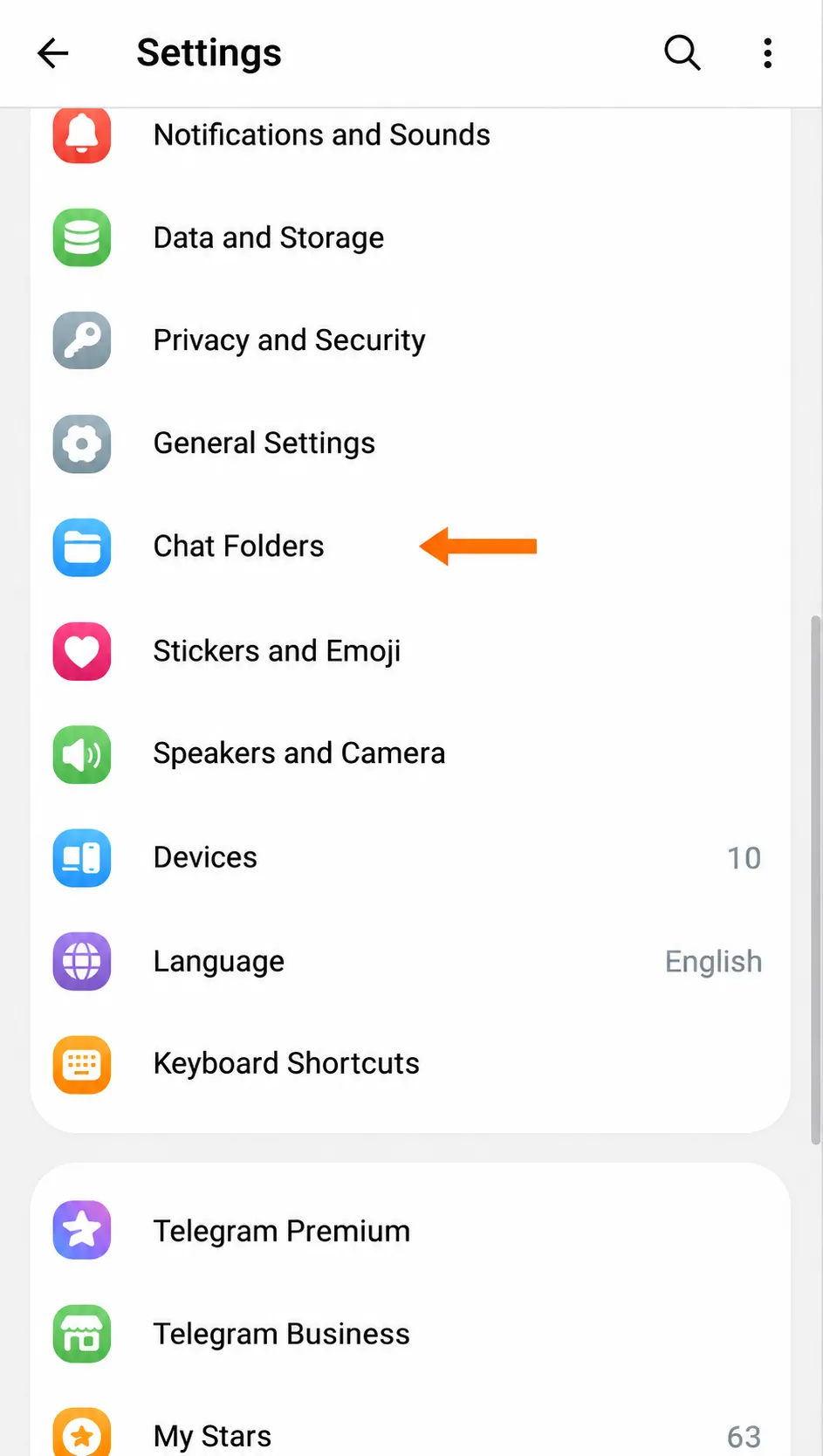
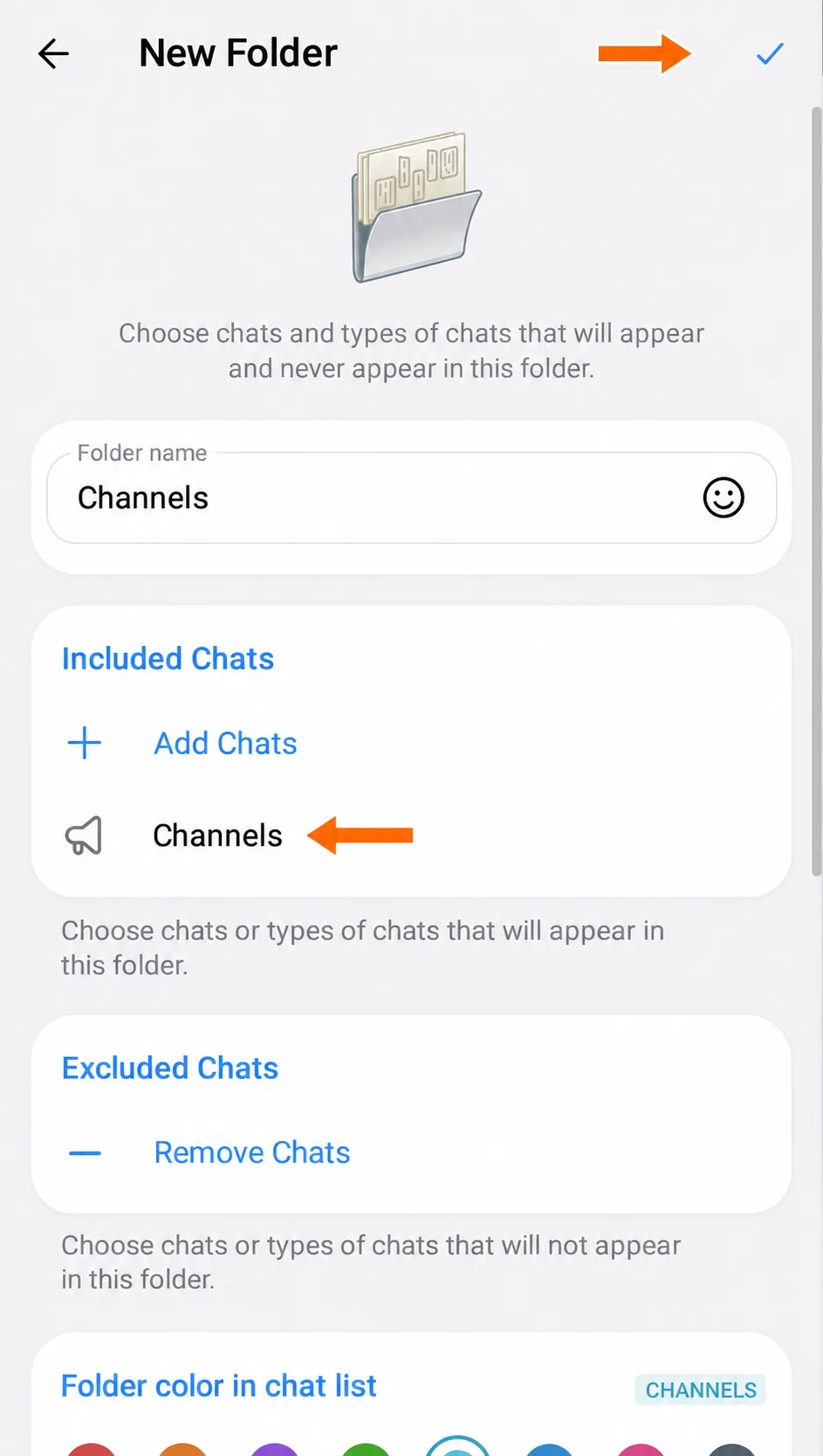
2. Click Create Folder. In the Folder name field, enter the name you want to see on the tab. This example uses Channels.
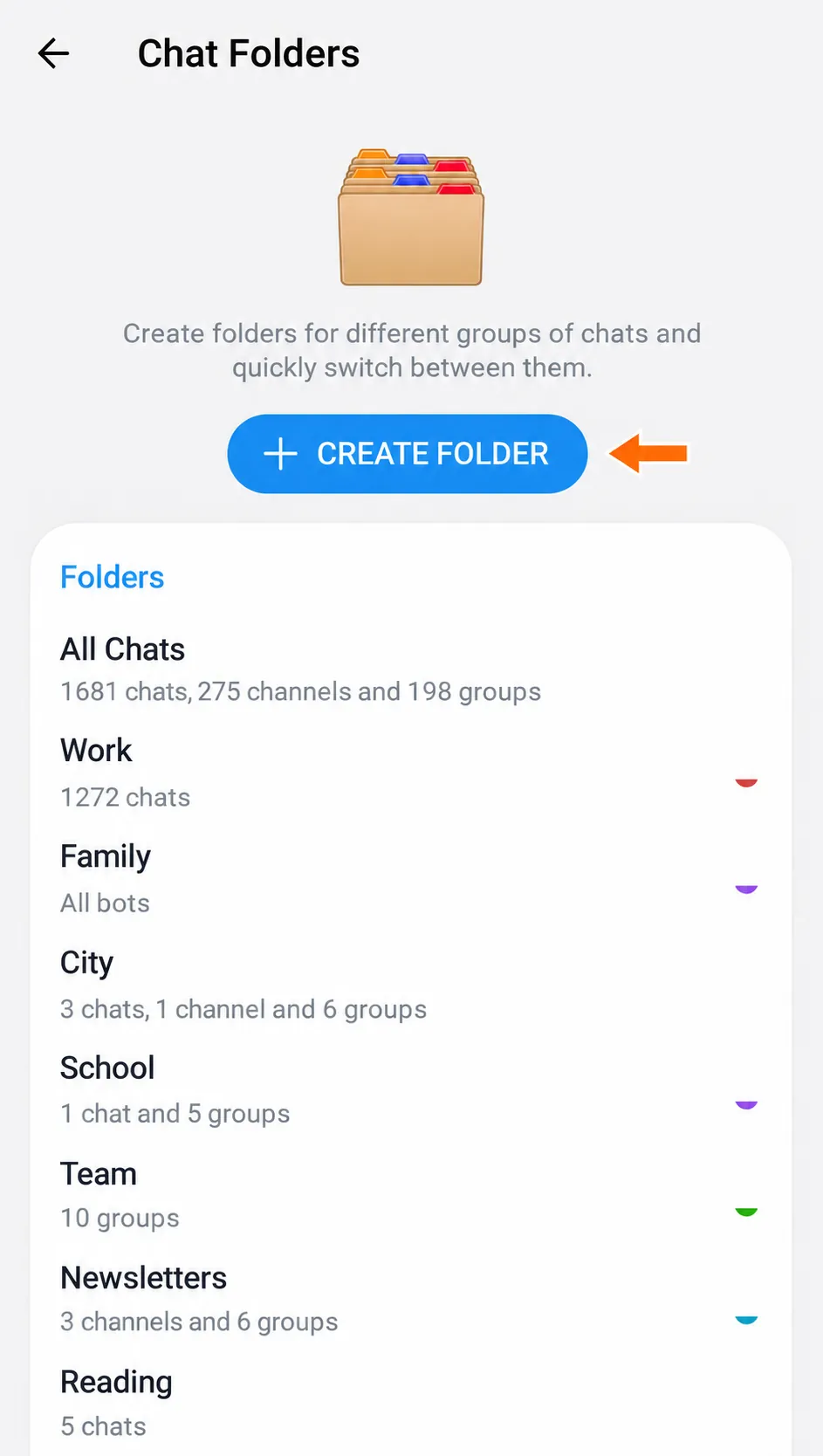
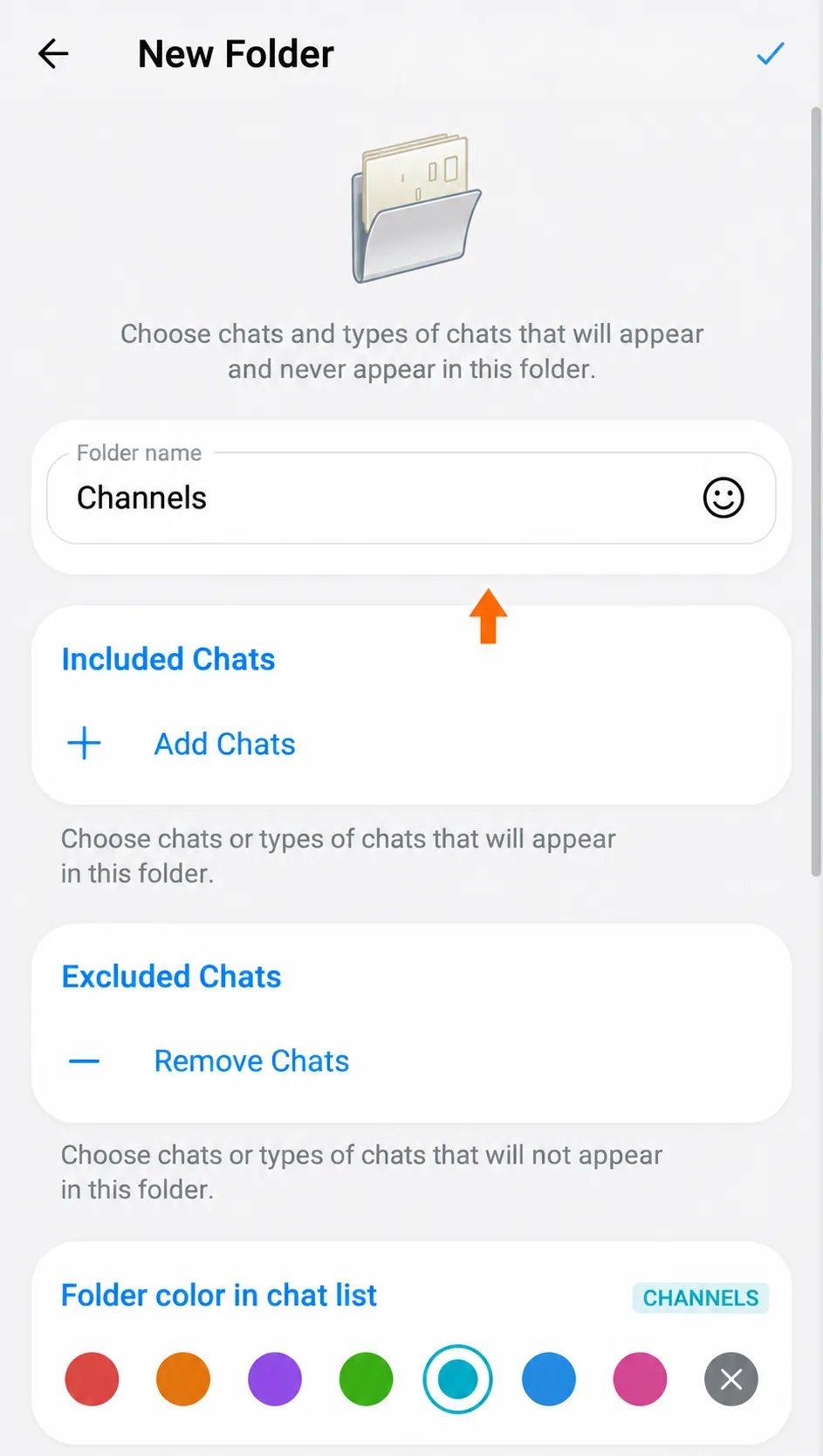
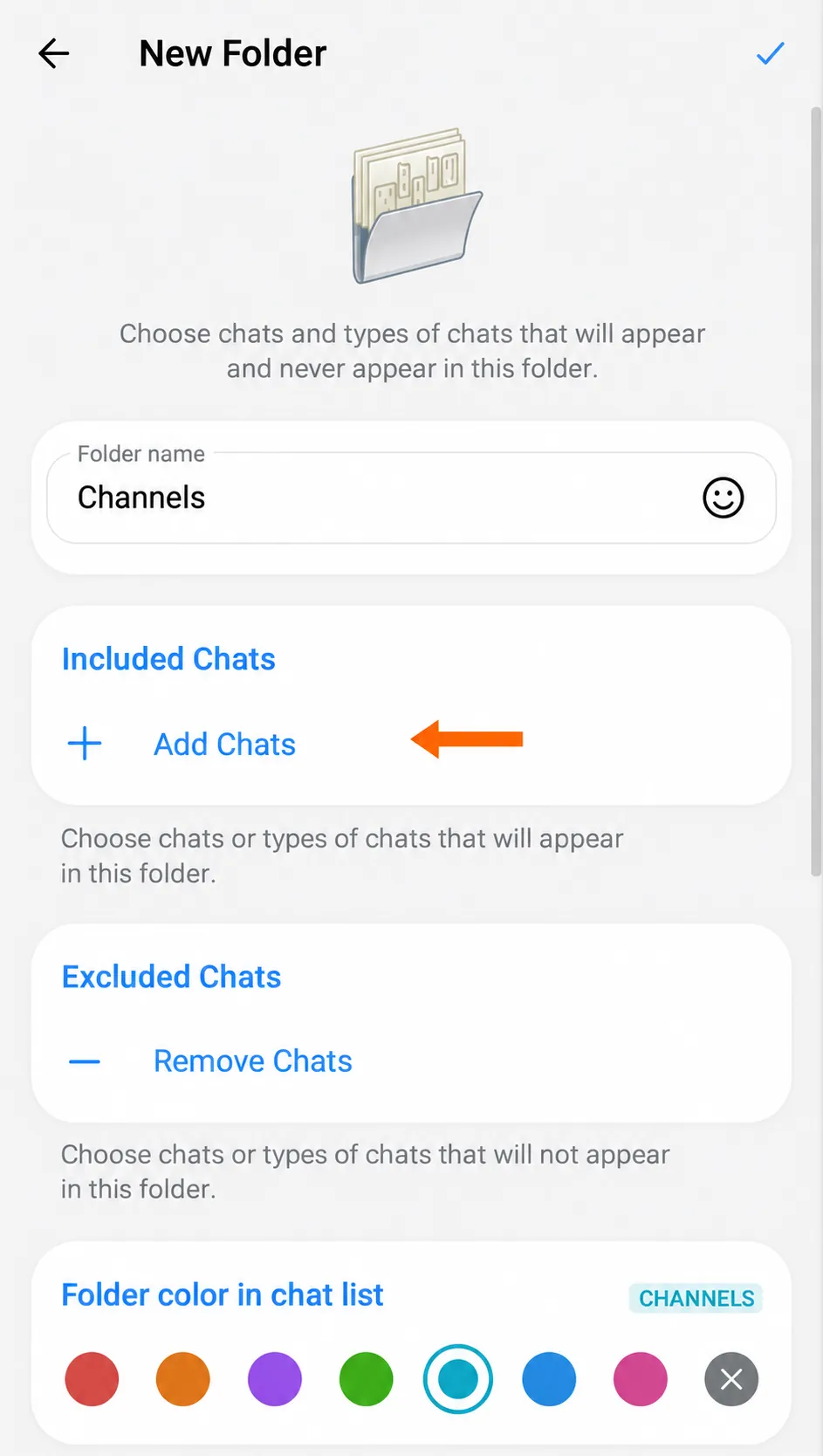
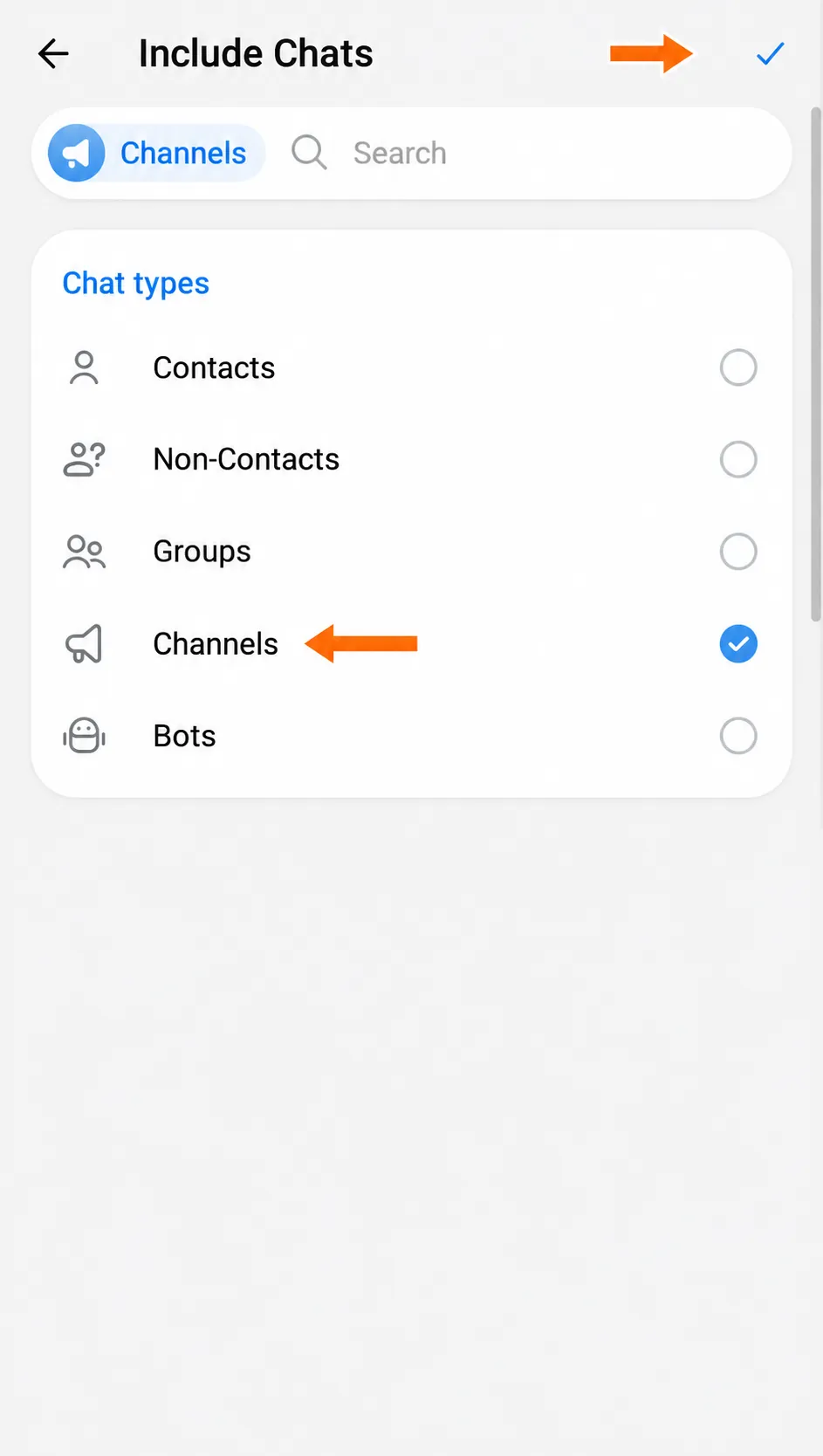
3. Click Add Chats under Included Chats. On the Include Chats screen, select Channels under Chat types, or choose individual chats. To save the folder, select at least one chat or chat type. Click the checkmark at the top to return to the folder form.
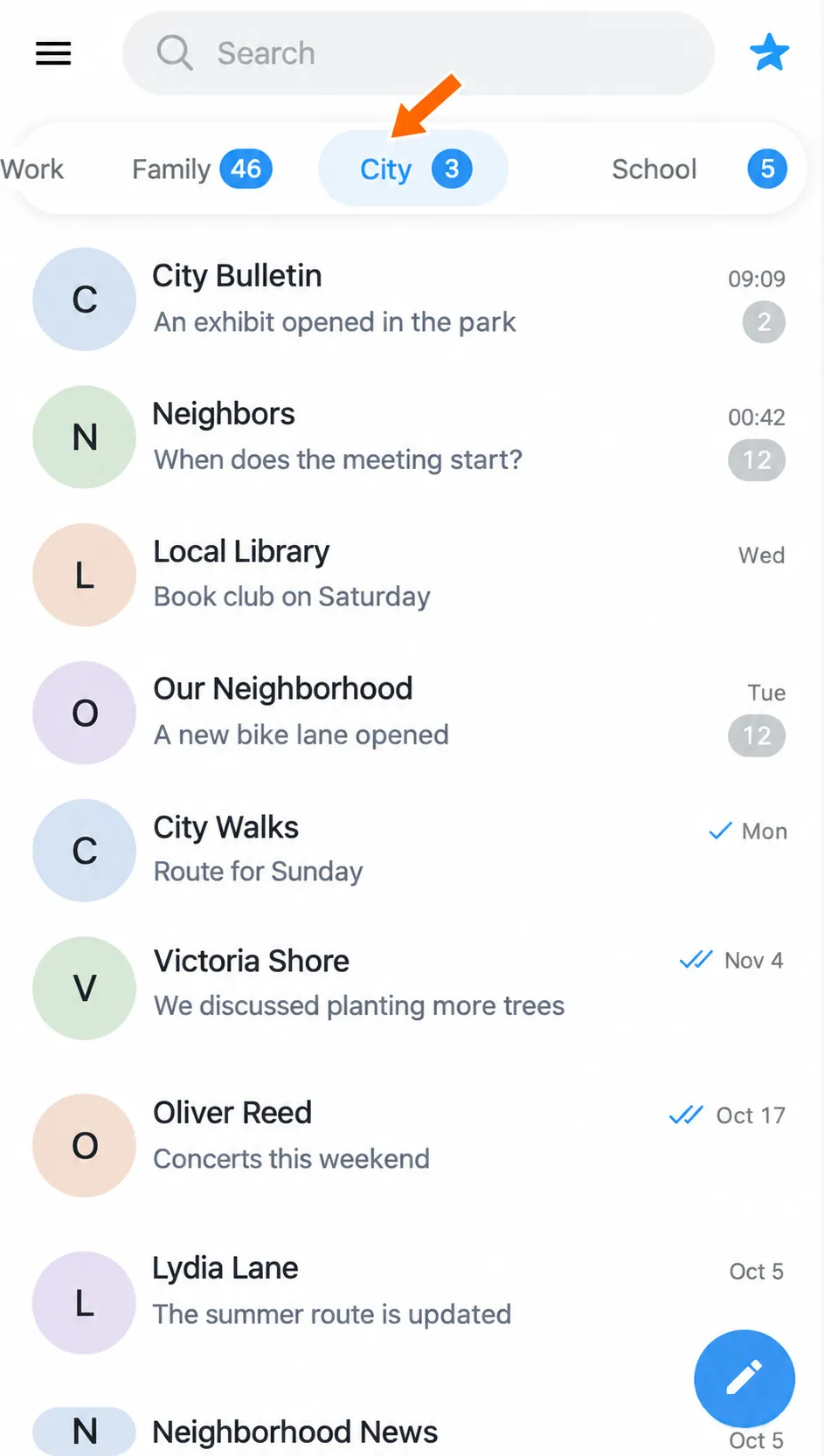
4. Click the Save checkmark at the top of the form. When the folder list opens, click the back arrow twice to return to your chats. Look for the tab with the name of your new folder. In this example, that’s Channels. The arrow in the screenshot of an existing folder called City shows where to find the tab.
If Telegram suggests a ready-made folder, you can add it by clicking Add under Recommended Folders. You can change which chats it contains, too.
How to choose which chats go in a folder
To add a new chat or remove one, open the folder from Chat Folders in Settings. This opens the same editor you used to create it.
Which chats can go in a folder
Under Included Chats, you can select chats individually, by type, or both.
- Individually. You can select personal conversations, groups, channels, and chats with bots. For example, a City folder could include local channels and a neighborhood group chat.
- By type. Telegram automatically adds matching chats. Contacts and Non-Contacts apply to personal conversations and depend on whether the person is in your contacts. For other chats, the types are Groups, Channels, and Bots.
What you can exclude
If Telegram adds chats you don’t want in a folder, use Excluded Chats to choose which ones to hide. In Web K, this section disappears once you create an invite link. The editor also has no exclusions for a folder you added through someone else’s link.
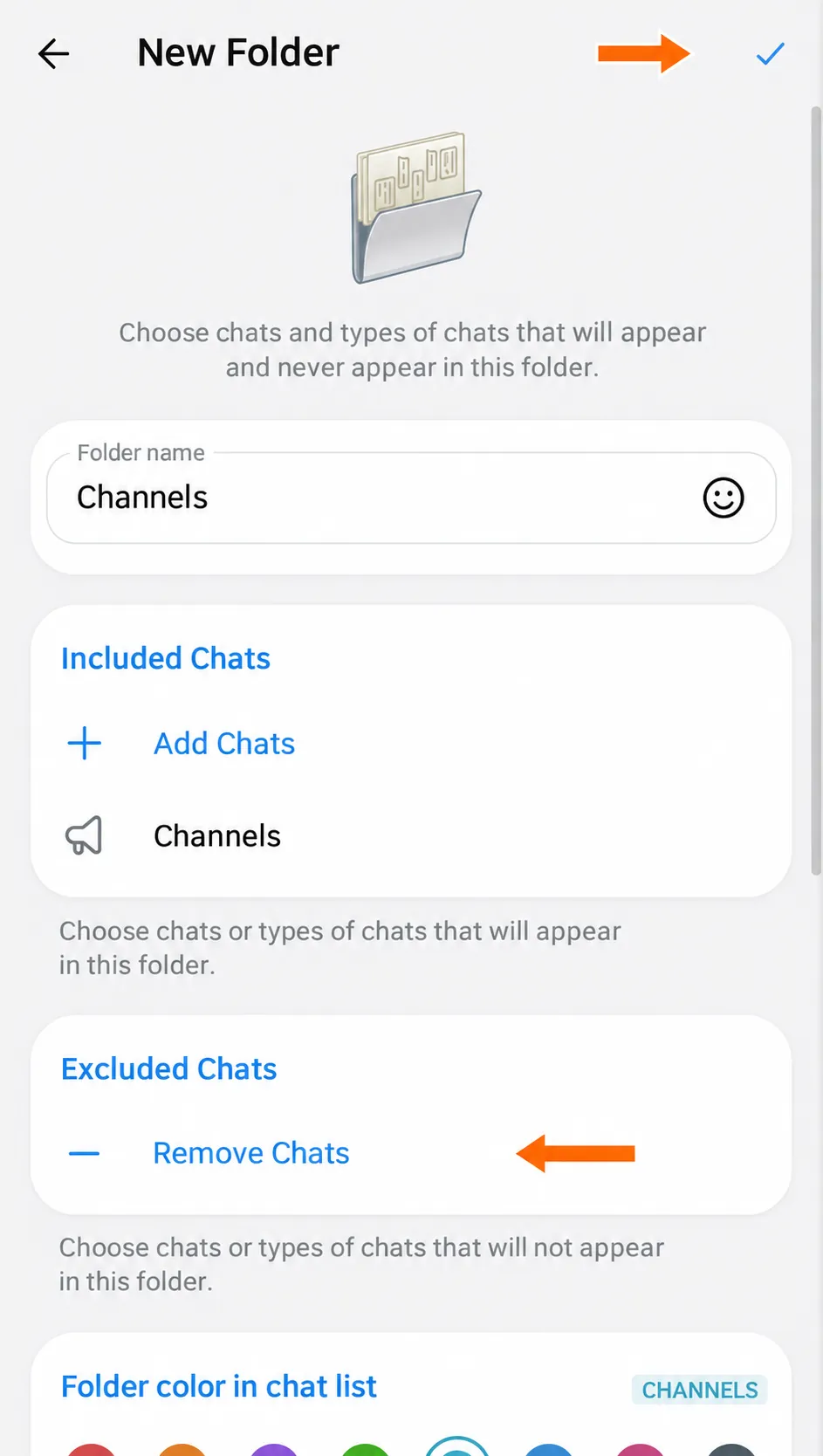
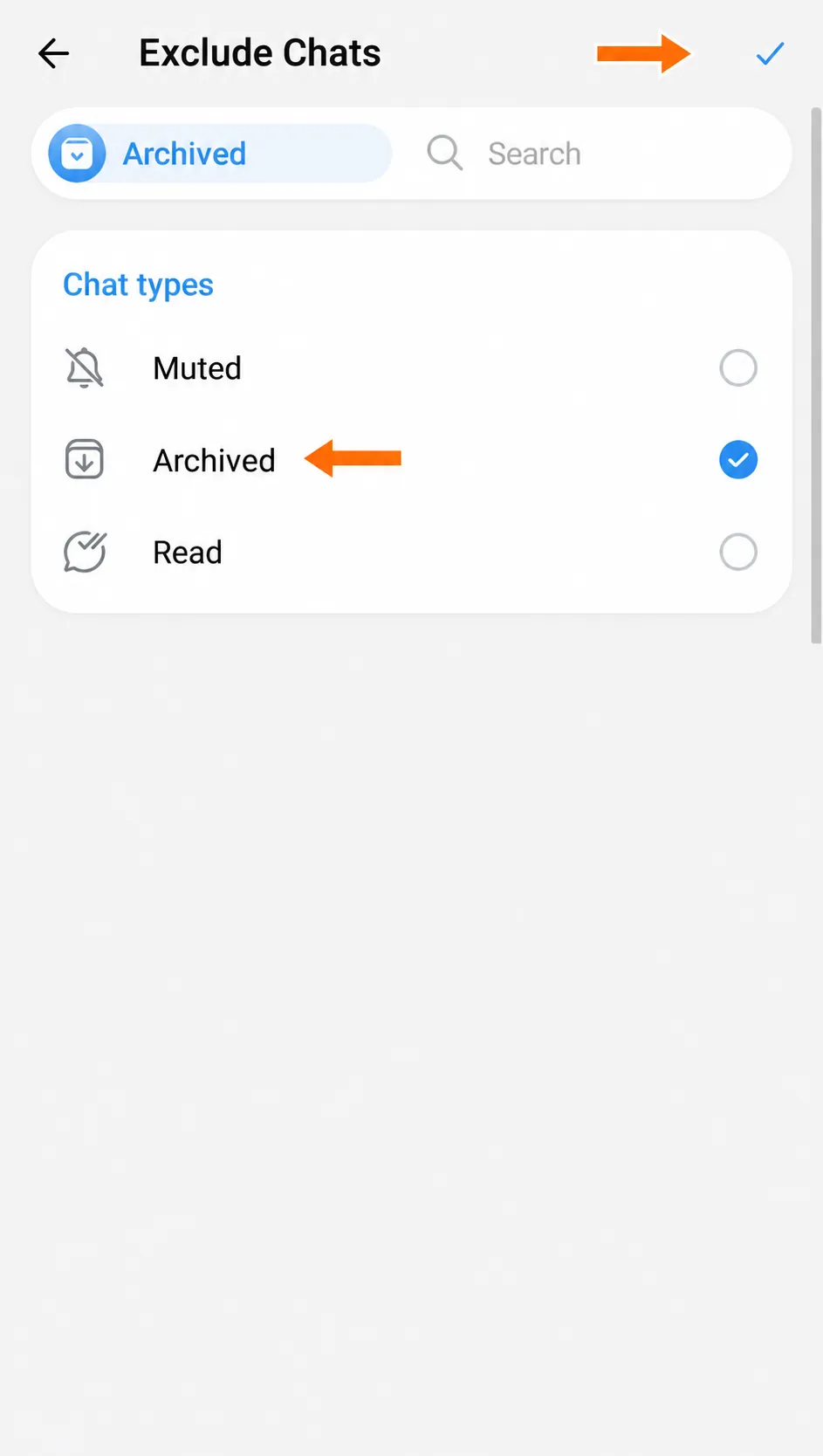
Click Remove Chats. On the Exclude Chats screen, you can select individual chats or set rules for the whole folder.
- Muted hides chats with notifications turned off from the automatic selection. In Telegram Web K, a chat with an unread mention may still appear.
- Archived removes archived chats from the automatic selection.
- Read leaves only unread chats in the automatic selection, including any you marked as unread yourself.
The screenshot shows Archived selected. Click the checkmark at the top to return to the folder form. Click Save there to apply the rule.
How to customize folders
Display settings for all folders
To move the tabs to the sidebar or display folder tags in the chat list, go back to Chat Folders in Settings. These settings apply to all folders.
- Show Folder Tags displays colored labels next to chats. If tags are turned off, the folder editor may hide the palette. A lock next to this setting means you can’t turn it on for this account.
- Folders view in Telegram Web K lets you choose where the tabs appear. Folders above chats keeps them above the chat list. Folders on the Left moves them to a sidebar with icons.
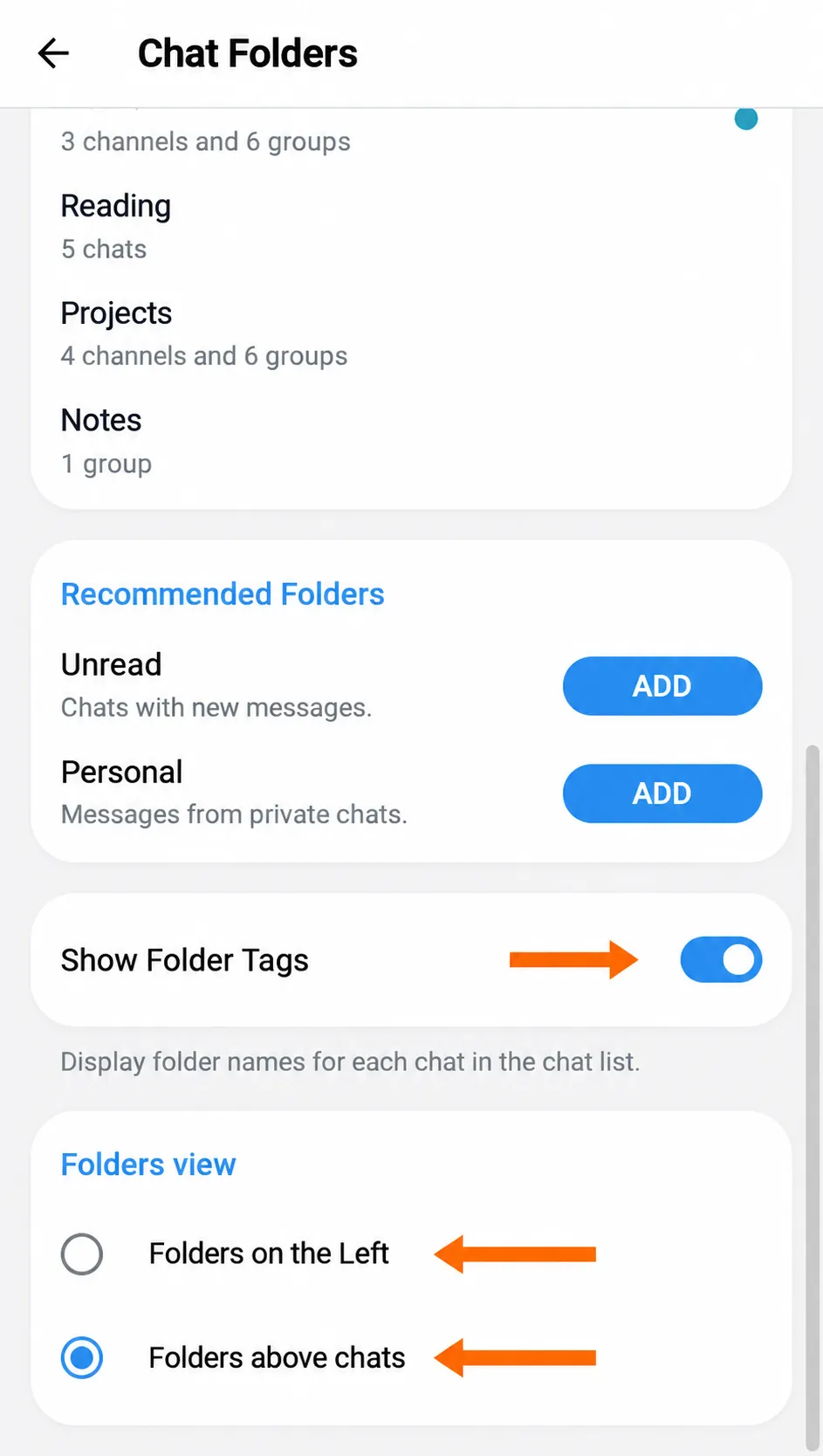
On phones, the tabs are above the chats. In Telegram Desktop, folders have a sidebar.
Name and emoji
To rename a folder, open its editor and change the text in the Folder name field. In Web K, a name can be up to 12 characters long. The Emoji button next to the field opens the emoji list. A single emoji at the beginning or end can serve as the folder’s icon in the sidebar. Click Save to apply your changes. In Telegram Desktop, you can choose the icon separately.
Tag color for an individual folder
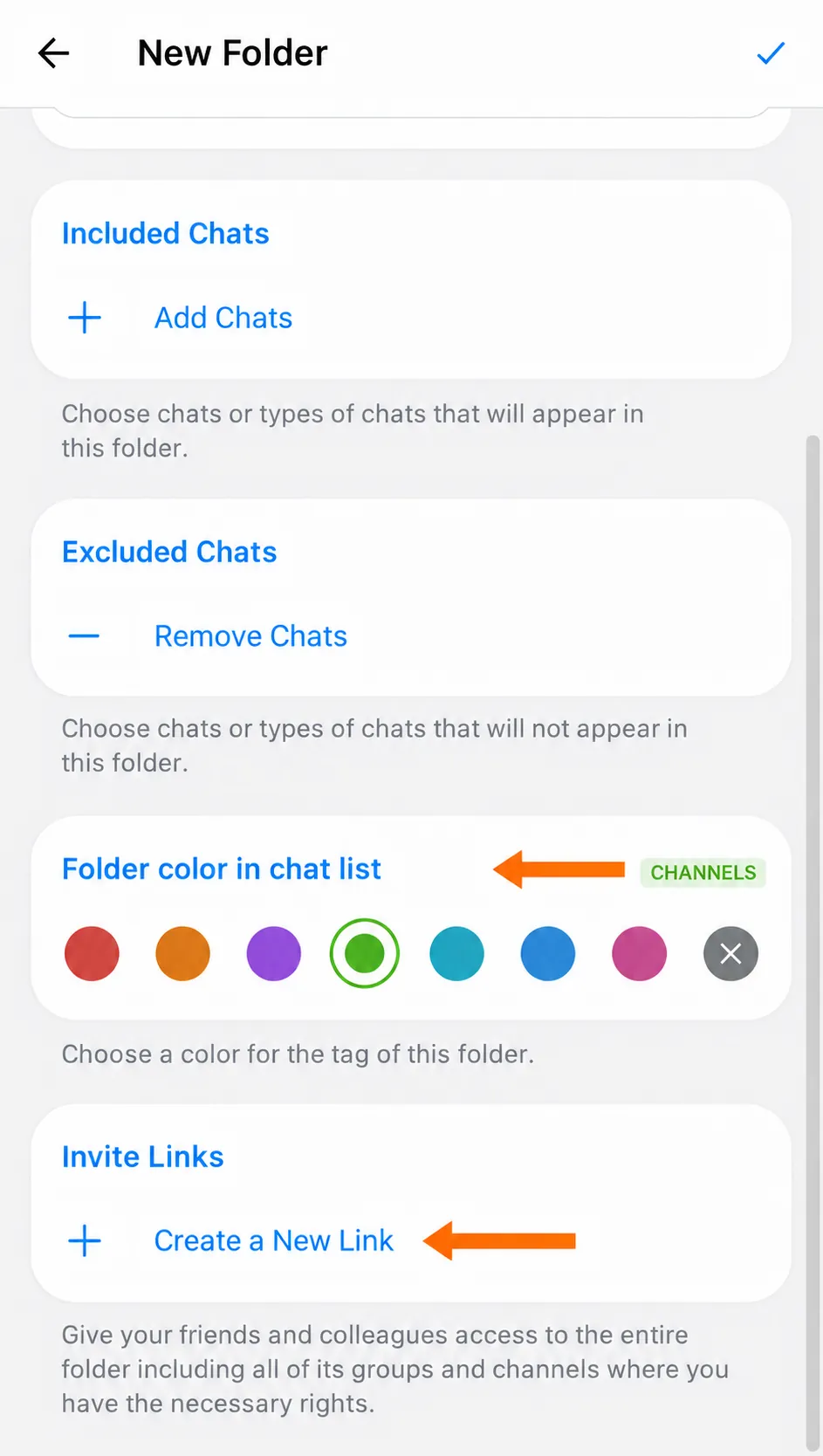
A colored Work tag makes it easy to spot a work conversation in the main chat list. If a chat is in several folders, it can show a tag for each one.
With Show Folder Tags turned on, open the folder editor and find Folder color in chat list. In Web K, you can choose one of seven colors and see a preview right away. For a folder without a colored label, select No Tag. Save your changes.
How to manage existing folders
Menus for folders and individual chats
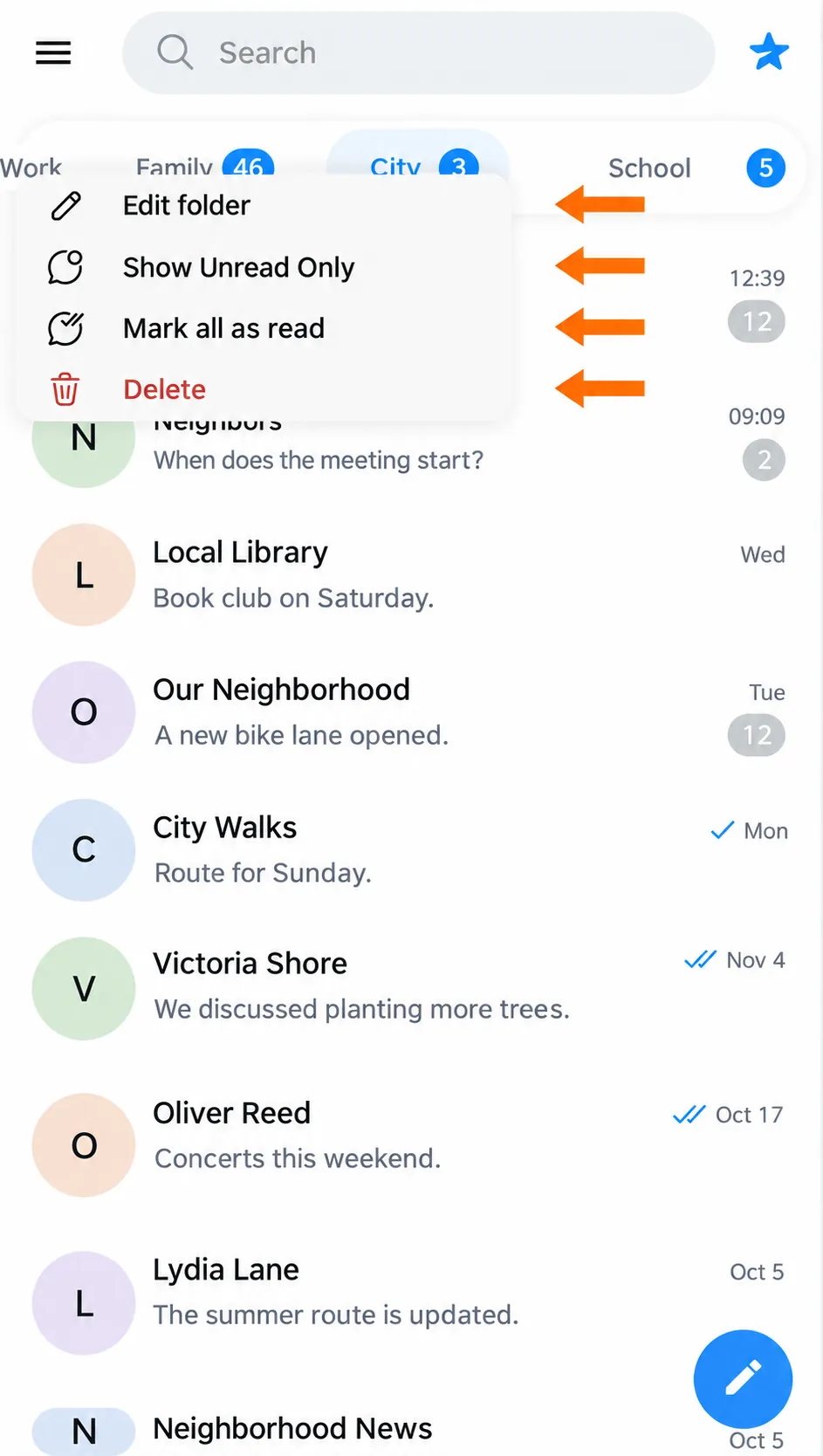
You can go straight to a folder’s settings from the chat list. In Telegram Web K, right-click its tab and choose Edit folder. The menu on the All tab takes you to the settings for all folders.
If your folders are on the left, the sliders button at the bottom of the sidebar opens Chat Folders. When you select an empty folder, a plus button may appear next to it as a shortcut to the editor.
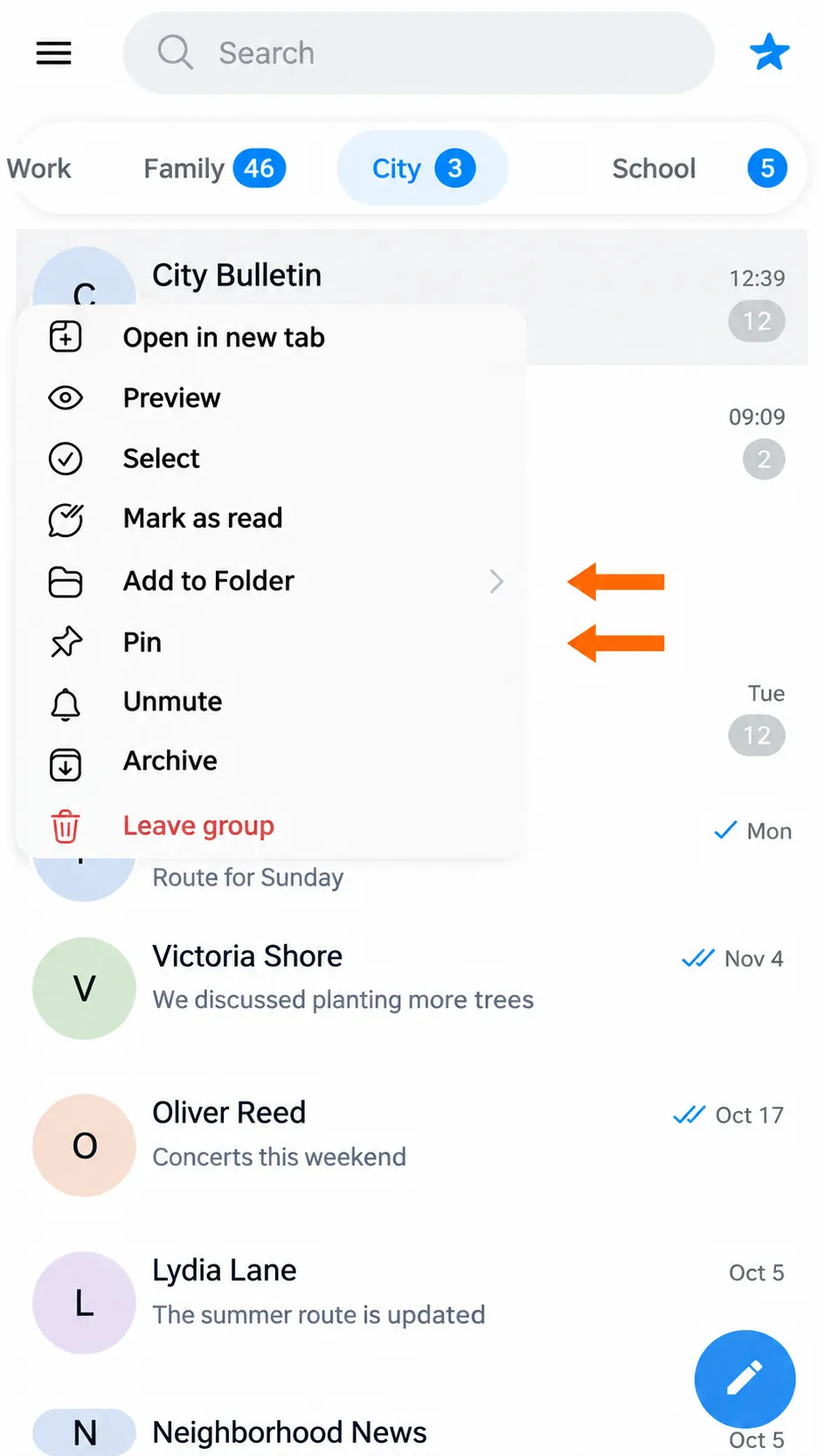
To add a single chat, open its menu and select Add to Folder. Checkmarks show which folders already contain it. Select a folder to add the chat, or clear its checkmark to remove it.
Startup folder and tab order
In Telegram Web K, you can rearrange the tabs in the Chat Folders list. Drag a folder using its handle with horizontal lines. On a phone, press and hold a tab name to open its menu. On iPhone, choose Reorder Tabs.
In apps that let you choose a startup folder, move it to the first position, ahead of All Chats. Telegram will then open that tab when it starts. You can still reorder your own folders on accounts where All Chats always stays first.
Pinned and unread chats
To keep an important chat at the top of a folder, open the chat’s menu and choose Pin. You can unpin it from the same menu. If a chat is in several folders, you can pin it and set its position among pinned chats separately in each one.
Show Unread Only in the folder menu temporarily hides chats you’ve read. You can restore the full list from the same menu. To keep read chats out of the automatic selection, set the Read exclusion in the editor.
If a folder contains unread chats, Mark all as read appears in its menu. It changes the read status in the main list and in any other folders containing those chats.
How to delete a folder
Choose Delete from the tab’s menu. For a folder you created for yourself, confirm the deletion. The tab will disappear, and your chats, messages, and subscriptions will stay. If you added the folder from someone else’s link, Telegram will ask which groups and channels you want to leave. If you want to stay in every chat, clear all the checkmarks, then confirm that you want to delete the folder.
How to share a folder with a link
Which chats you can include in a link
You can share a work channel and several groups with your coworkers through a single link. To make this kind of invitation, select the chats for the folder individually. In Telegram Web K, the option to create a link is available for folders you put together by hand without exclusions.
Public groups and channels are usually eligible. If people have to apply to join, an admin can include the group or channel in a link. You can add private groups and channels if you have permission to invite members. Personal conversations and chats with bots stay in your own folder.
Where to create and edit a link
Once the folder contains at least one group or channel you can share, click Create a New Link under Invite Links at the bottom of the editor. A list of eligible chats will open. Leave the checkmarks next to the chats you want to share. If you change the selection, click the Save checkmark before sending the link.
You can make several links for the same folder, each with a different set of chats. For example, you can give coworkers access to work groups and send clients just the announcements channel. If there are already too many invitations, Telegram may display a warning or hide the button for creating another one.
To change which chats are included, open the link in the folder editor. You can also copy or delete it there. A deleted link stops working for new recipients. On Android and iPhone, you can give links different names and open their QR codes. Only the person who created a link can see its name.
What the recipient sees
The link shows the groups and channels available to the recipient. They choose which groups to join and which channels to follow. They can rename their own copy of the folder and add other chats to it.
When you add a channel, it changes only your folder. To share the new channel with people who already added the folder, include it in the relevant invitation. Telegram will offer them the option to follow the channel.
Frequently asked questions
Where do I create a Telegram folder on Android?
Open Settings from Telegram's bottom bar. If the bar shows a Calls tab, tap your avatar at the bottom and choose Settings in your profile. Then open Chat Folders and tap Create New Folder.
Where are Telegram folders on iPhone?
Go to Settings → Folders → Create New Folder. The folders you create appear above the list on the Chats screen.
How many folders can I create in Telegram?
You can create up to 10 folders without a subscription and up to 30 with Telegram Premium.
Can I change the order of my folders?
Yes. In Telegram Web K, drag the folders in the Chat Folders list. On iPhone, choose Reorder Tabs from the tab's menu.
Can I share a folder with someone else?
Yes. In Telegram Web K, you need a folder whose chats you selected individually, without exclusions. If it contains at least one group or channel you can share, create an invite link. Your personal conversations and chats with bots stay with you.
What happens to my chats if I delete my folder?
If you delete a folder you created for yourself, only its tab disappears. Your chats, messages, and subscriptions stay.
Can I create folders inside a channel?
Channels don't have folders for posts. Folders group chats and channels in the Telegram chat list. Separate discussions within one group can use topics.