
How to enable comments in a Telegram channel
Connect a discussion group to your Telegram channel with this step-by-step guide. Learn what to check when the comment button is missing or readers cannot reply.

Comments let readers discuss your Telegram channel posts with you and with each other. Someone following a tutorial can ask about a step they do not understand or share how they solved a similar problem. Replies appear in a separate thread under the post, where other participants can read them.
Telegram uses a group linked to the channel to host these discussions. New channel posts are automatically forwarded to that group, and replies to those forwarded posts also appear as comments under the original posts. You therefore need a separate group even if you only plan to talk to readers through comments.
This guide shows you how to link an existing group or create a new one, then check that comments work.
Before you start
You must be the channel owner or an administrator to change this setting. If you are an administrator, check that you have permission to change the channel’s information. You also need admin rights in an existing group: Telegram will list the chats you can link.
Enable comments
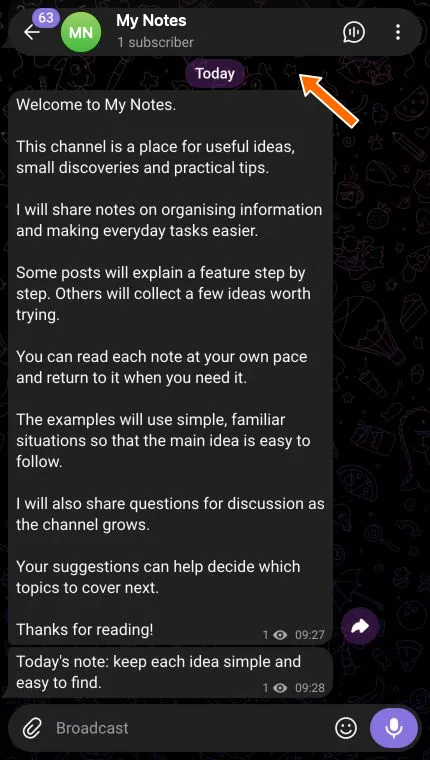
1. Open your Telegram channel and click its name at the top.
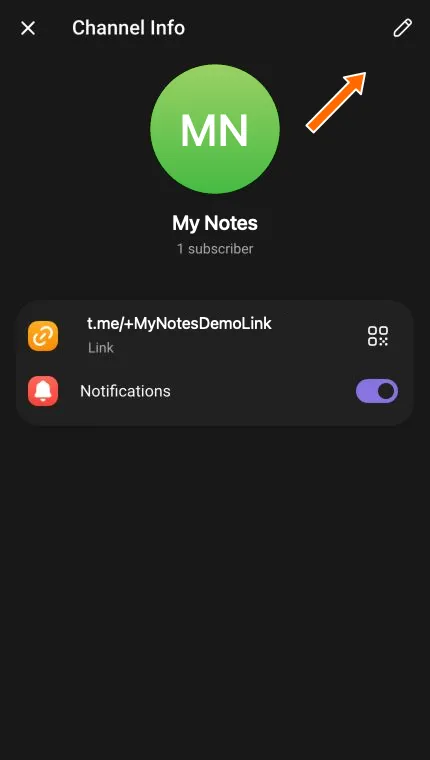
2. In Channel Info, click the pencil icon.
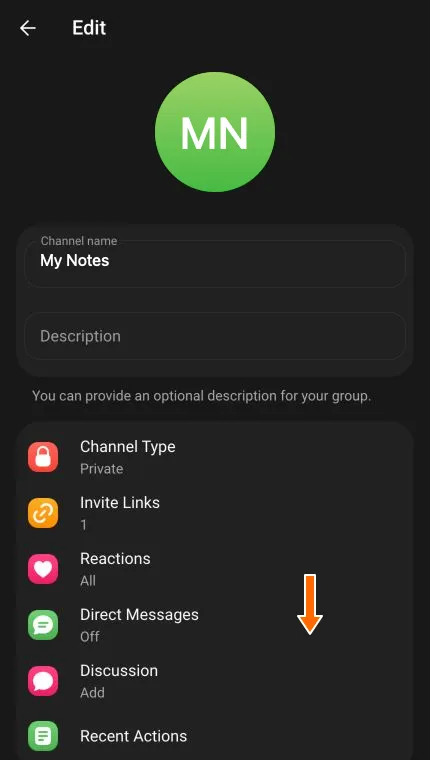
3. On the Edit screen, select Discussion. If no group is linked yet, this row will show Add.
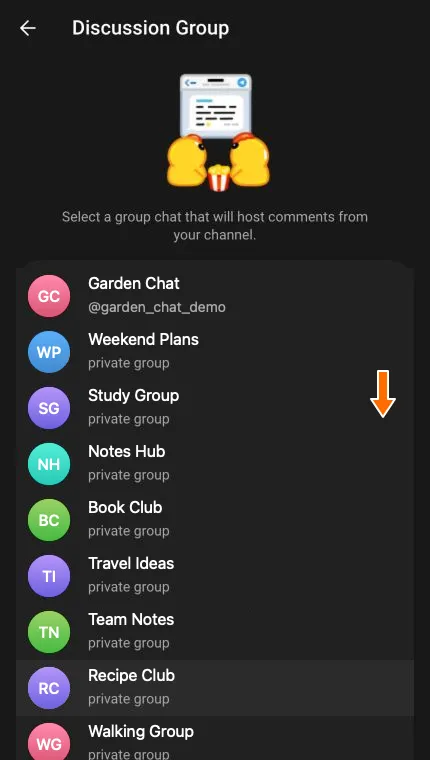
The Discussion Group screen opens. Choose one of the two options: link an existing group (4.1) or create a new group (4.2). After linking it, continue to check the connection.
4.1. To use an existing group, select it from the list.
Telegram opens a confirmation dialog. Read the notices about access to messages, then click Link Group.
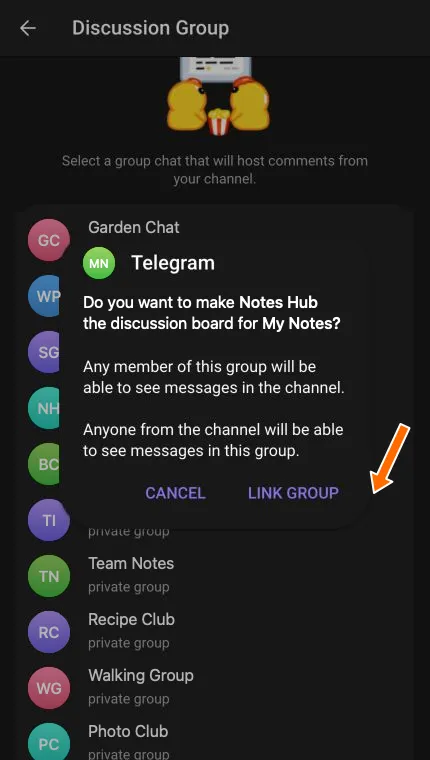
If the group’s history was hidden, Telegram will make it visible to new members when you link it.
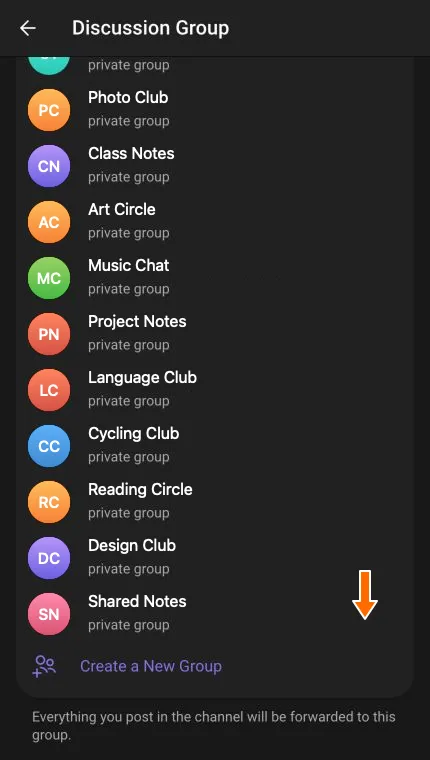
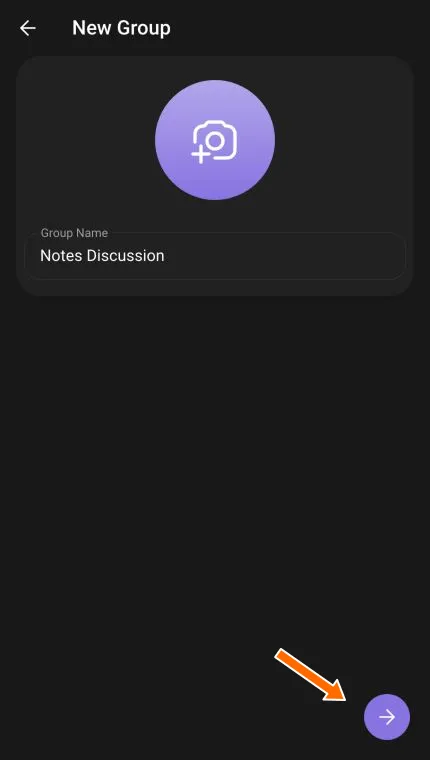
4.2. To create a new group, scroll to the bottom of the group list and click Create a New Group. Enter a name in Group Name, such as “Notes Discussion”.
Click the round button with the right arrow at the bottom. Telegram creates the group and links it to your channel.
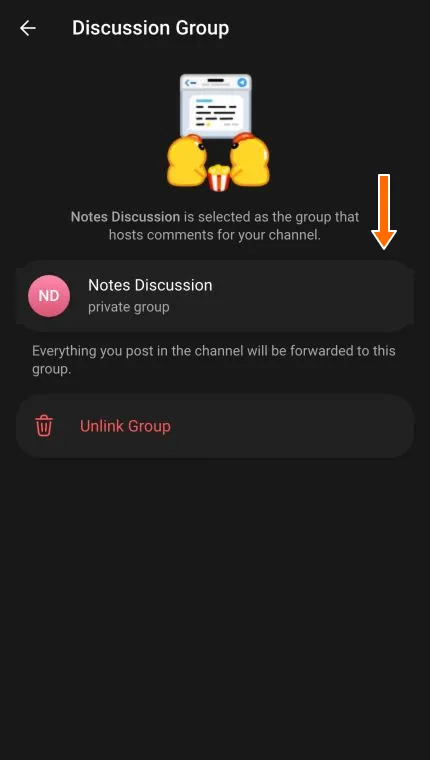
5. Check the linked group. The connection is saved when you confirm it; you do not need to save the channel settings separately. Open Discussion again and check that the correct group is listed.
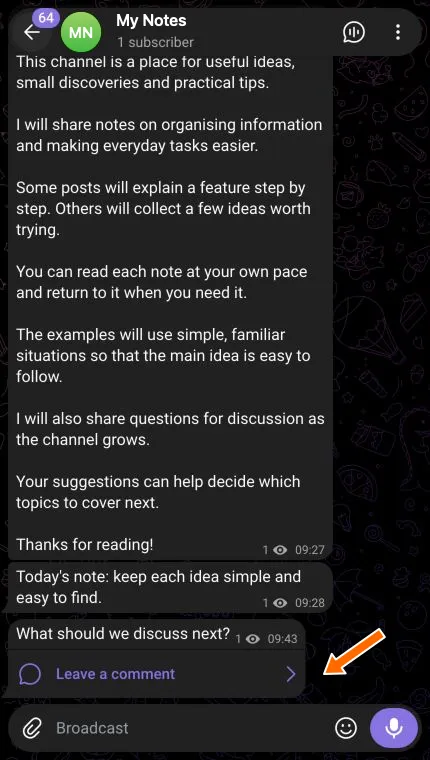
6. Publish a new post after linking the group. A short question works well for this check: “What should we discuss next?” A post with no replies will have a Leave a comment button underneath it.
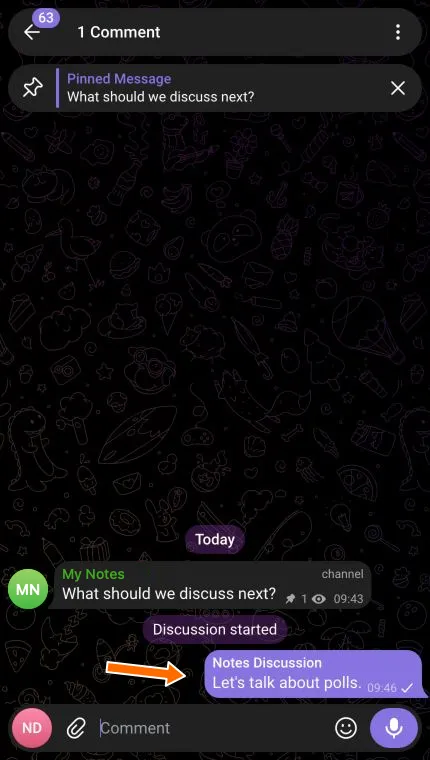
7. Click that button and send a comment, such as “Let’s talk about polls.” Your reply will appear in the post’s thread. The linked group will also contain an automatically forwarded copy of the channel post.
Troubleshooting
There is no Discussion setting
Check that you have opened the channel’s settings and are using its owner or administrator account. If the setting is unavailable, ask the owner to check your permissions.
Your group is missing from the list
Check that you are an administrator of the group. Groups with topics enabled cannot be used for channel discussions. If no suitable chat is available, create a new group.
A group is selected, but the post has no comment button
Open Discussion again. If the row still says Add, the connection is incomplete: select the group and confirm the link.
If the group is listed, check a post published after linking it. Find its automatically forwarded copy in the group. Deleting that copy disables comments on the post. An older post will not tell you whether the new setting worked.
The button is there, but readers cannot comment
Check what Telegram says. If it asks you to join the group, join first. If sending messages is not allowed, the owner or an administrator needs to check the member’s permissions in the group. Linking the group again will not remove those restrictions.
Frequently asked questions
Can I enable comments without a group?
No. Telegram's built-in comments use a linked group. If you do not have a separate chat yet, create a group for comments.
Do I need a bot for comments?
No. You only need to link a group in the channel's settings. No third-party service is required.
Do comments work in private channels?
Yes. Neither the channel nor the group needs to be public. However, linking them gives channel subscribers access to the group's messages, and its history becomes visible to new members.
How do I comment on a channel post?
Click “Leave a comment” or the comment count under the post, type your message and send it. Your reply will appear in that post's thread. If Telegram asks you to join the discussion group, join it first. See the comment check for an example.
Why is there no comment button under a post?
Check that the group was linked successfully and that the post was published afterwards. Its automatically forwarded copy must still exist in the group. Deleting that copy disables comments on that post. Follow the checks under “A group is selected, but the post has no comment button”.