How to send a disappearing photo in Telegram
A disappearing photo or video becomes unavailable after viewing. We explain the two modes, show how to send one in a private chat, and cover the limits on saving it.

You can send a disappearing photo in Telegram when you want to limit how it can be viewed in a conversation. The recipient can open the image, but once viewing ends, they cannot return to it. As the sender, you decide exactly when the photo becomes unavailable. The rest of the conversation stays intact.
Disappearing photo and video modes
Telegram has two disappearing media modes. Both work for photos and videos, but they limit viewing in different ways:
- View Once. The recipient can look at the photo until they close it. Once closed, the image cannot be opened again. This is called a view-once photo.
- Timer. The photo disappears a set number of seconds after it is opened. The countdown does not start until the recipient opens it. For example, a 10-second timer gives them 10 seconds to view the photo, even if they open the message an hour after you send it.
How to send a disappearing photo
Disappearing photos are sent in a regular private chat with another person, so you do not need to create a Secret Chat. Preparing the photo is the same for both modes. You can then choose View Once or set the time after which the photo will disappear.
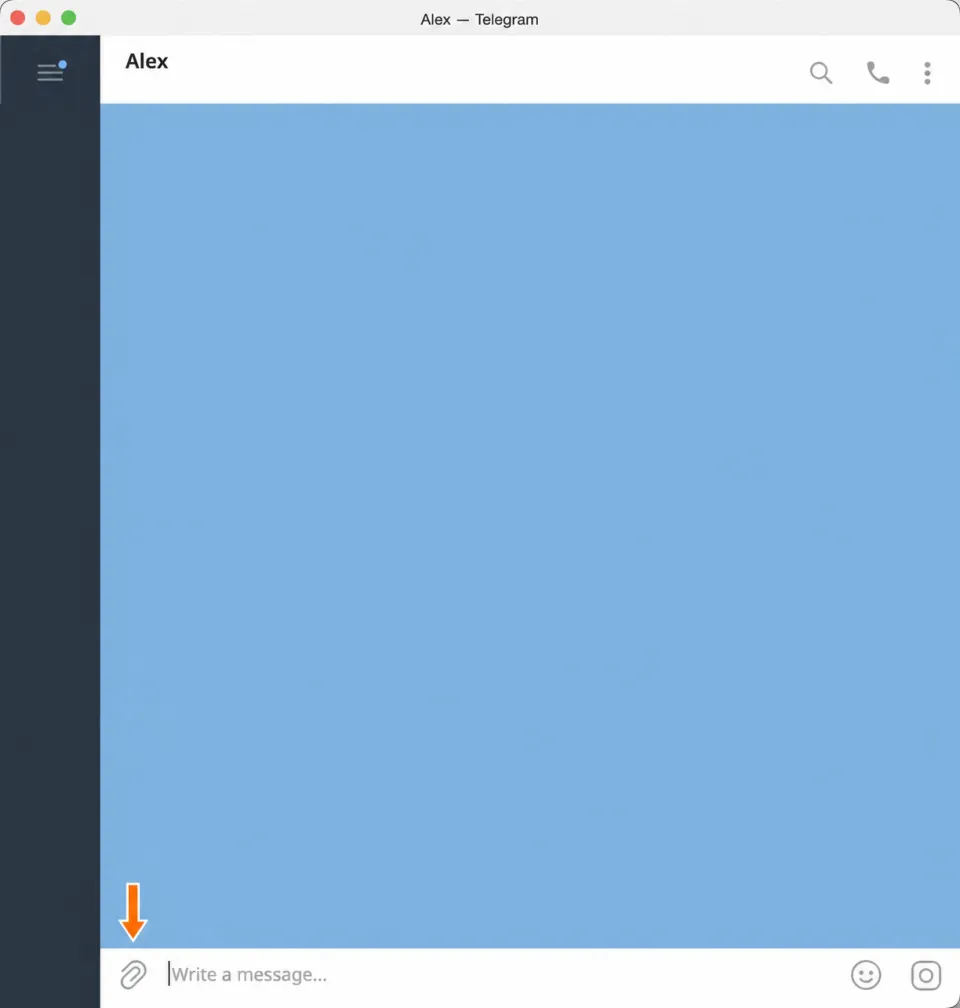
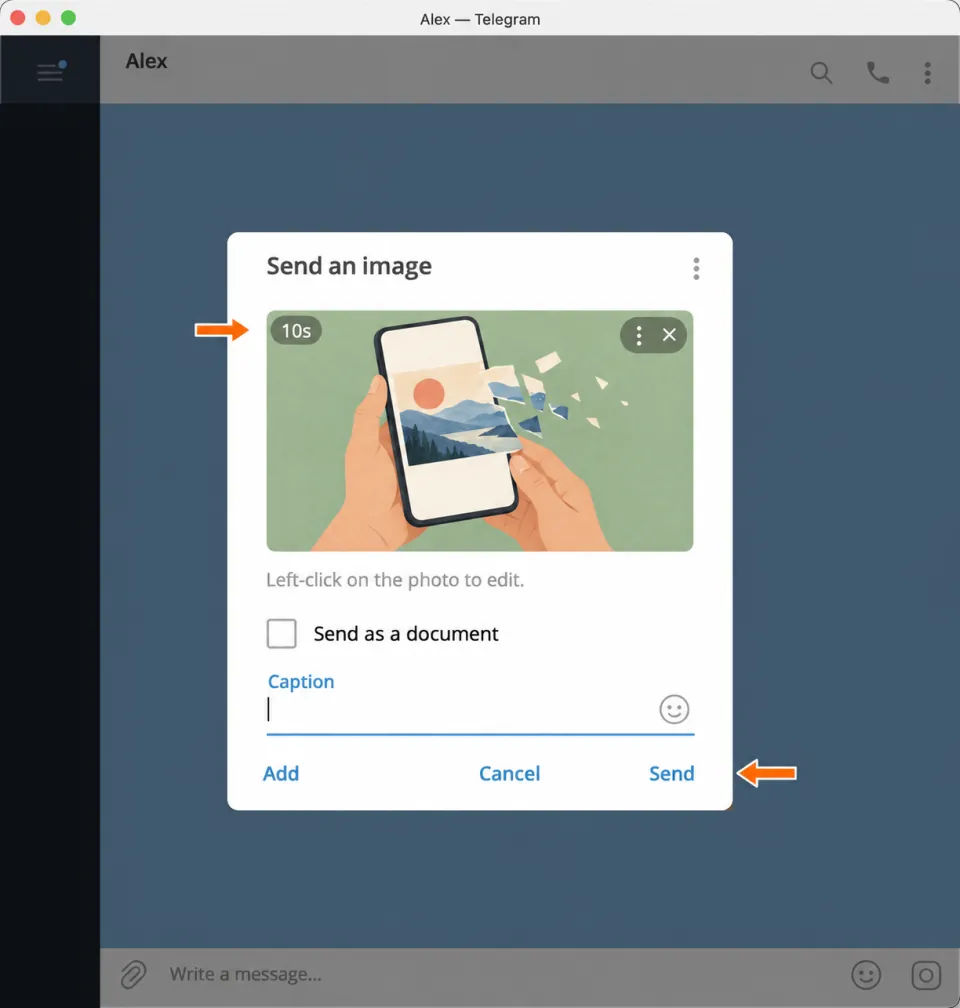
1. Attach a photo. Open the chat, click the paperclip next to the message field, and select a photo. On your phone, choose a photo from the gallery and tap it to open the preview. If “Send as a document” is checked, uncheck it: the timer is unavailable when you send the photo as a file.
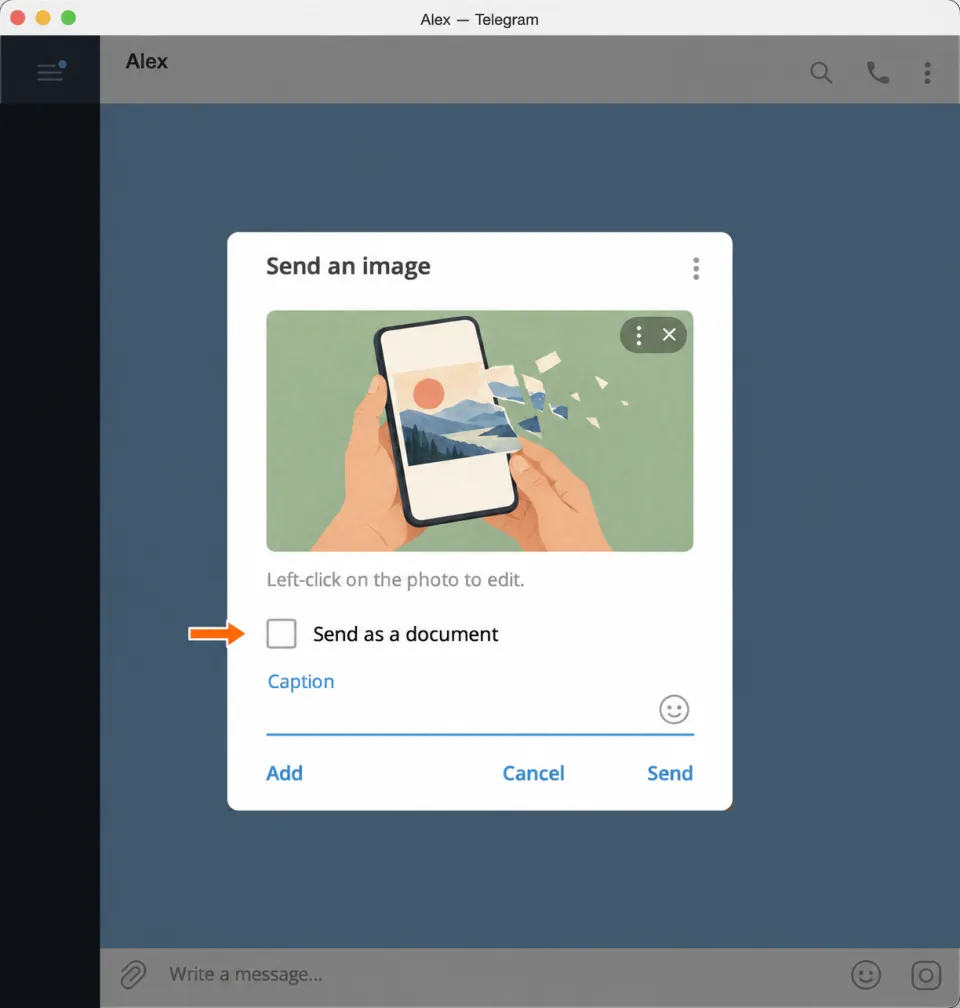
2. Open the photo options. On a computer, click the three dots on the photo itself, then choose “Self-Destruct Timer.” On Android and iPhone, tap the 1 button next to the caption field in the preview.
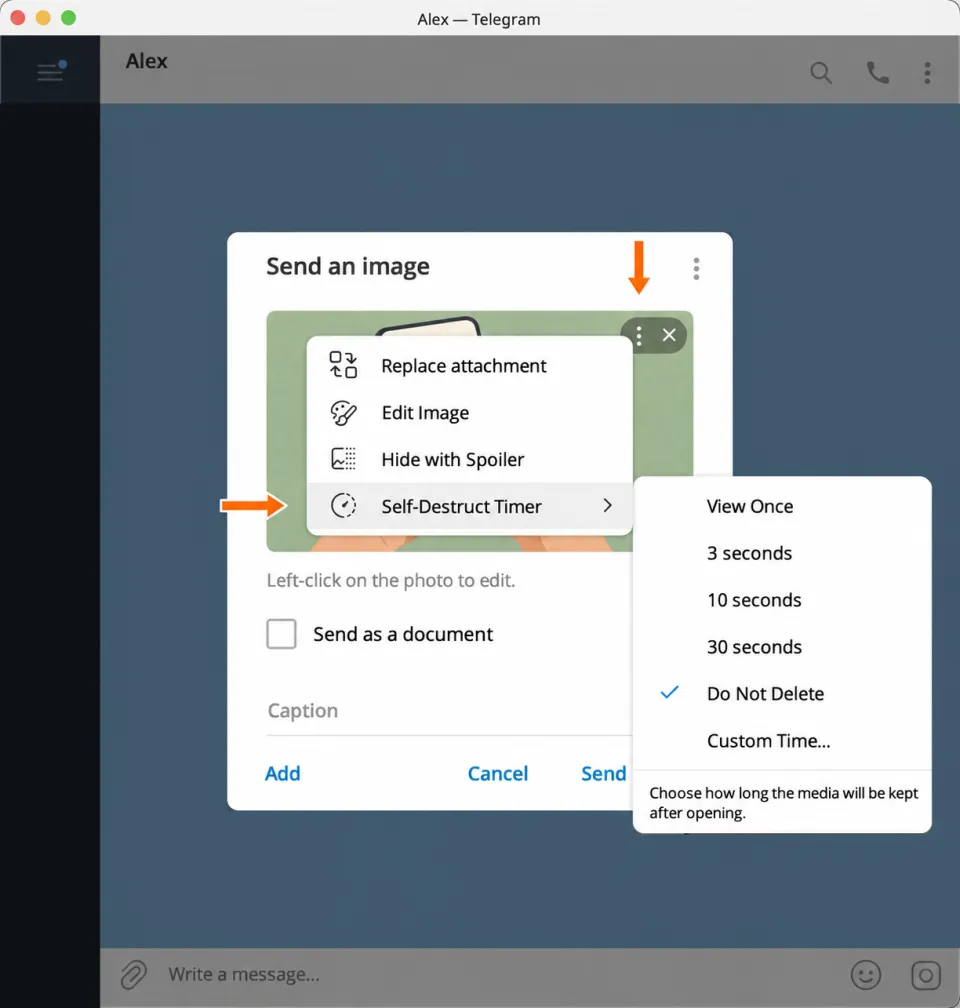
Now continue with one of the two options below.
View-once photo
For a view-once photo, you do not need to set a time in seconds: viewing ends when the recipient closes the image.
3. Choose “View Once.” A 1 inside a dotted circle appears on the photo in the preview. It confirms the selected mode.
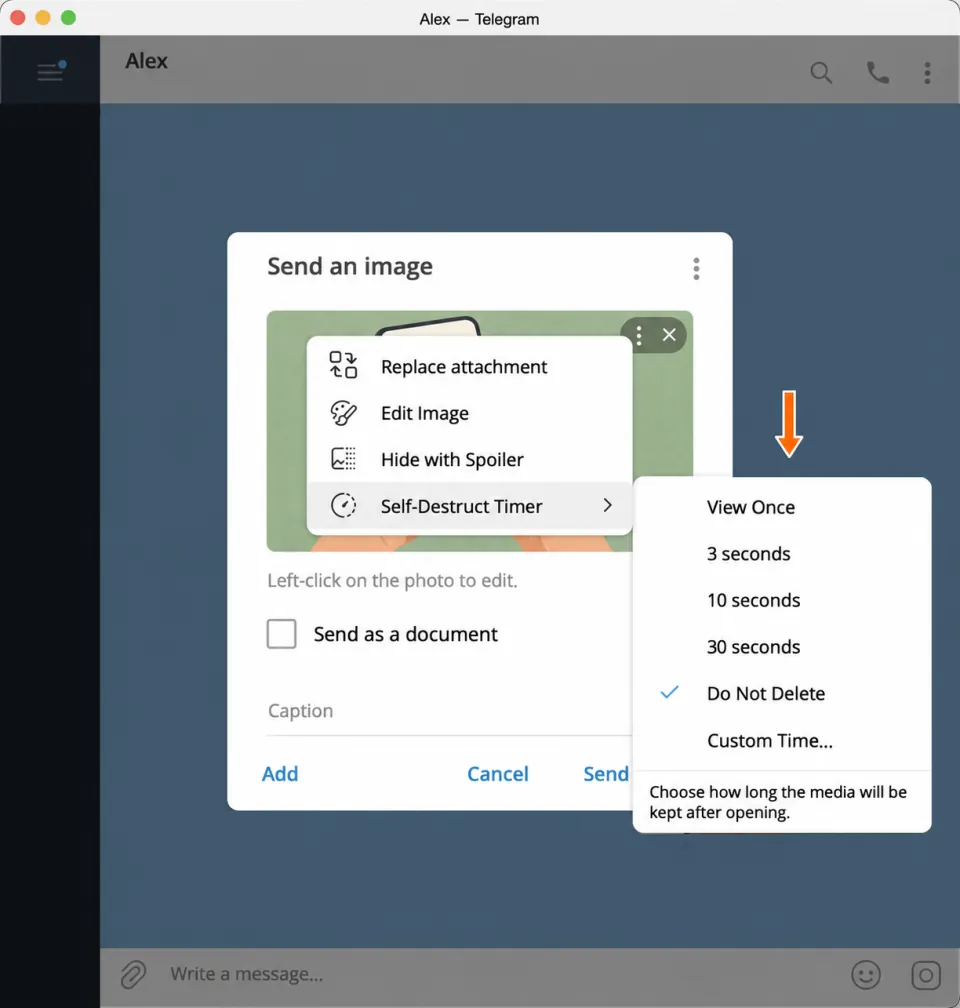
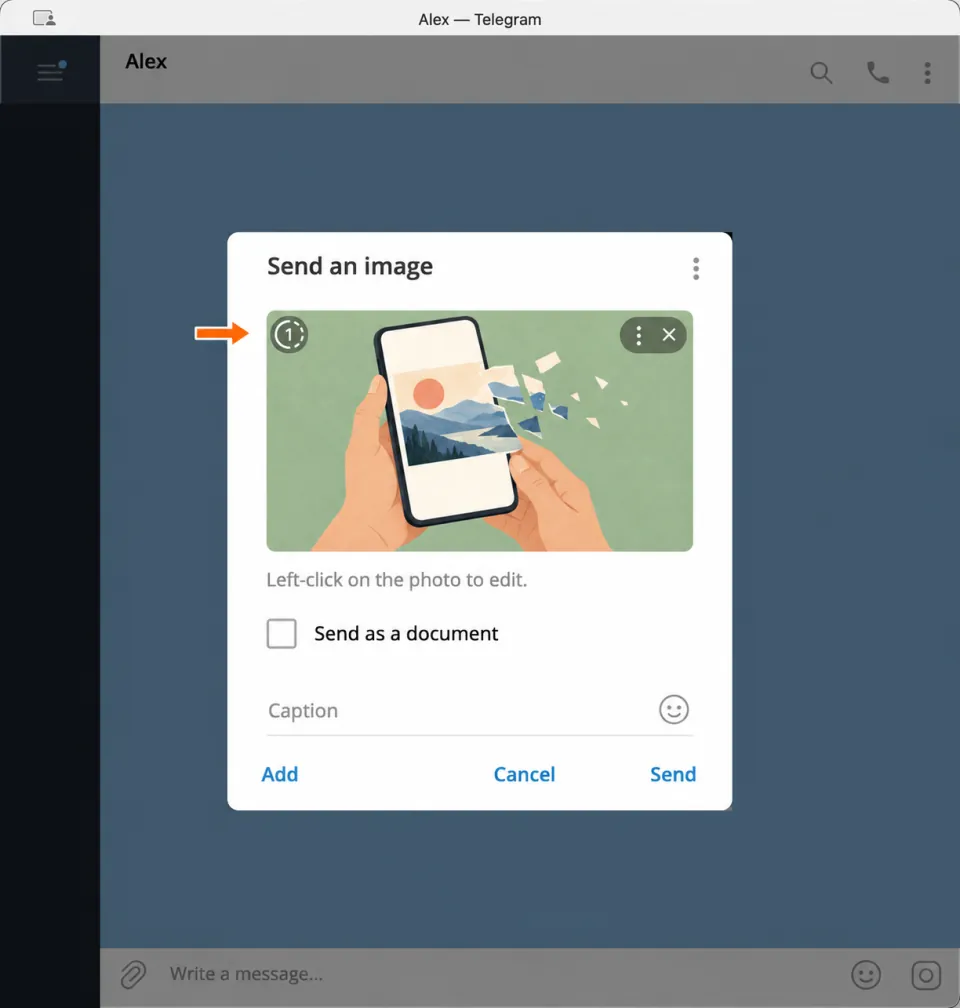
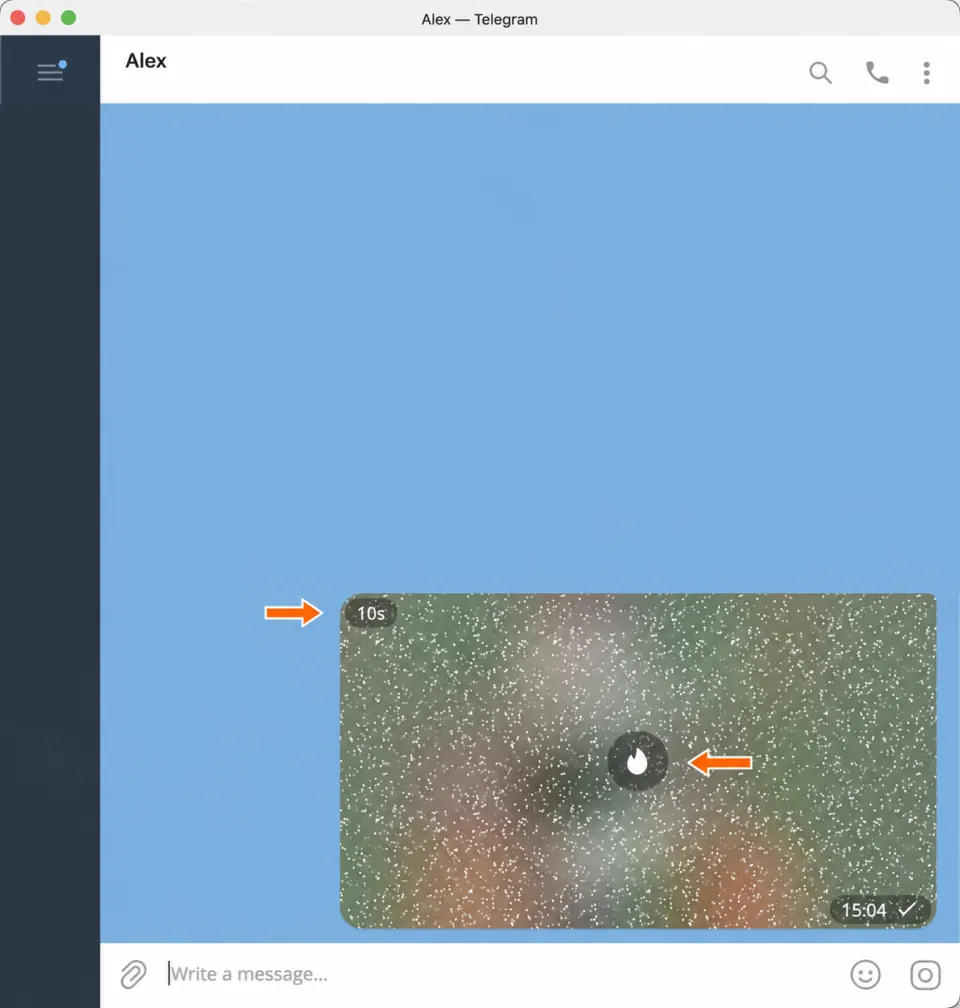
4. Click “Send” and check the message in the chat. The view-once photo will be hidden, with a flame icon and a 1 in the center, as in the example below.
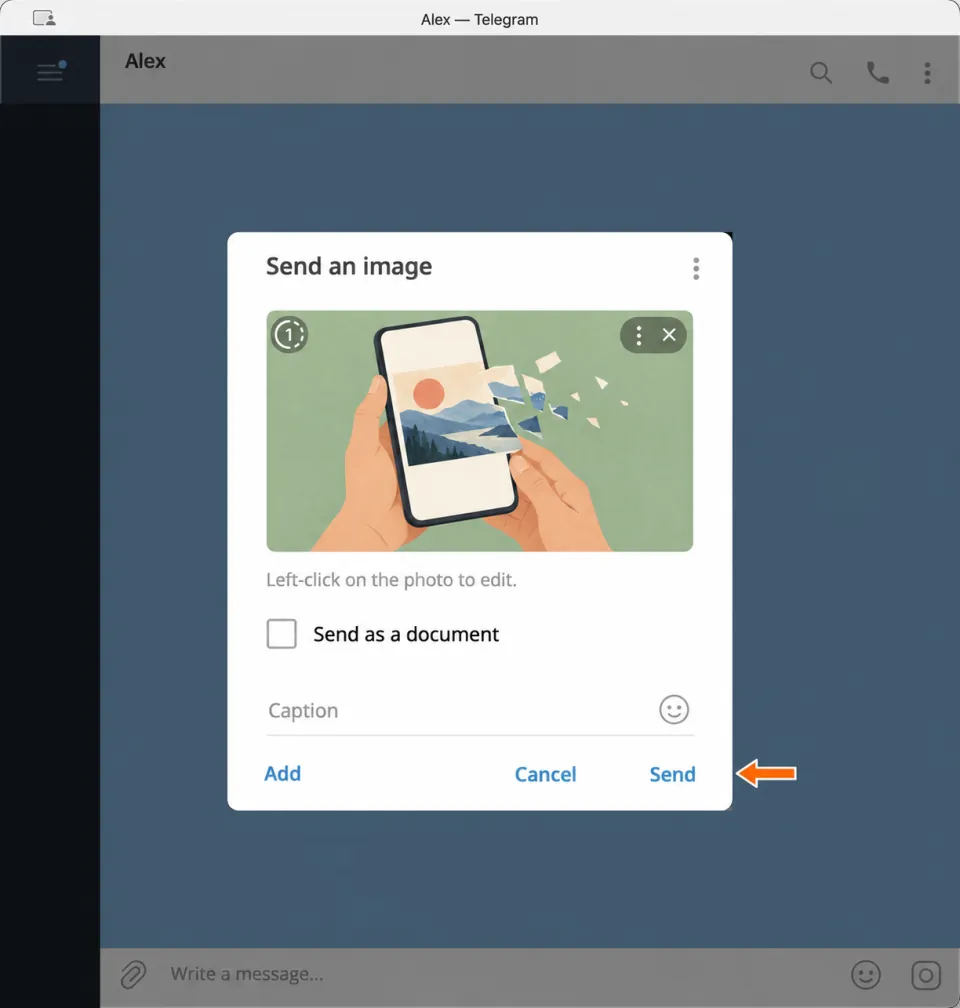
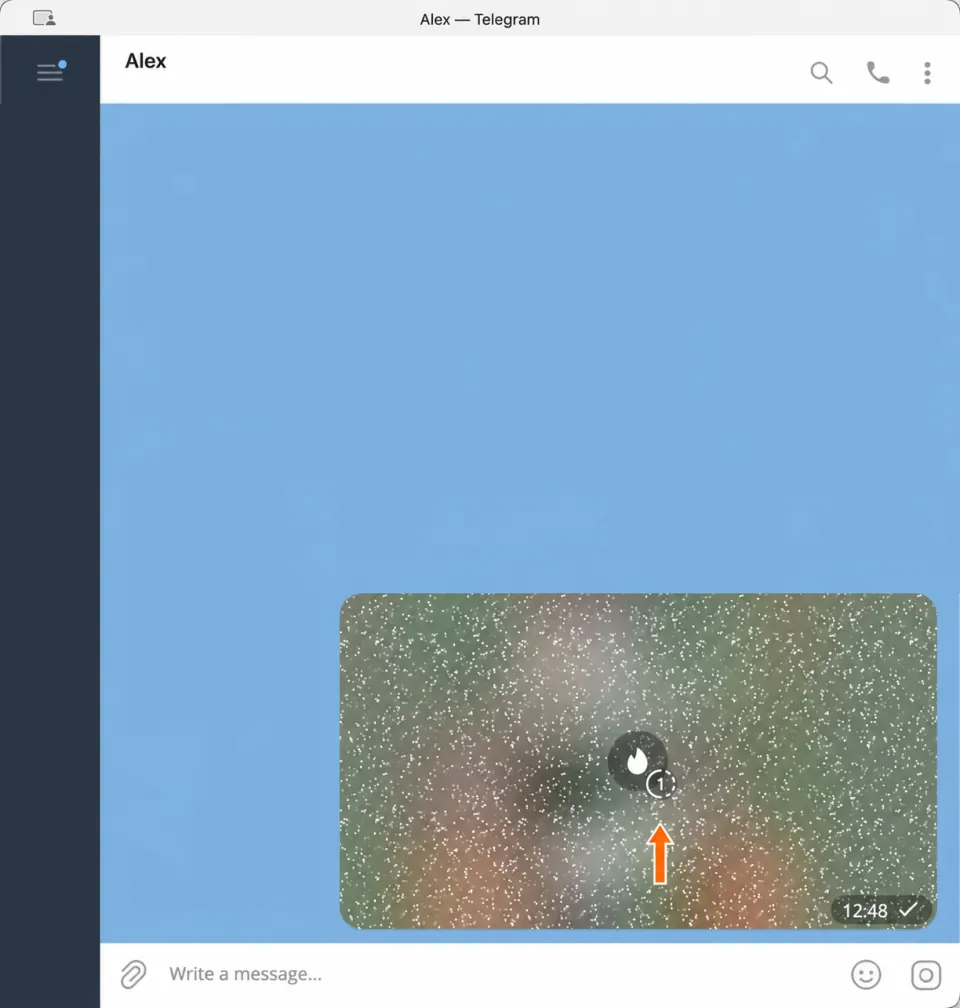
Photo with a timer
With this option, you set how many seconds the recipient can view the photo after opening it. Preparing the photo and opening the menu work the same way.
3. Choose a viewing time. Select the number of seconds you want from the menu, such as “10 seconds.” On a computer, you can use “Custom Time…” to set your own value if none of the presets fits.
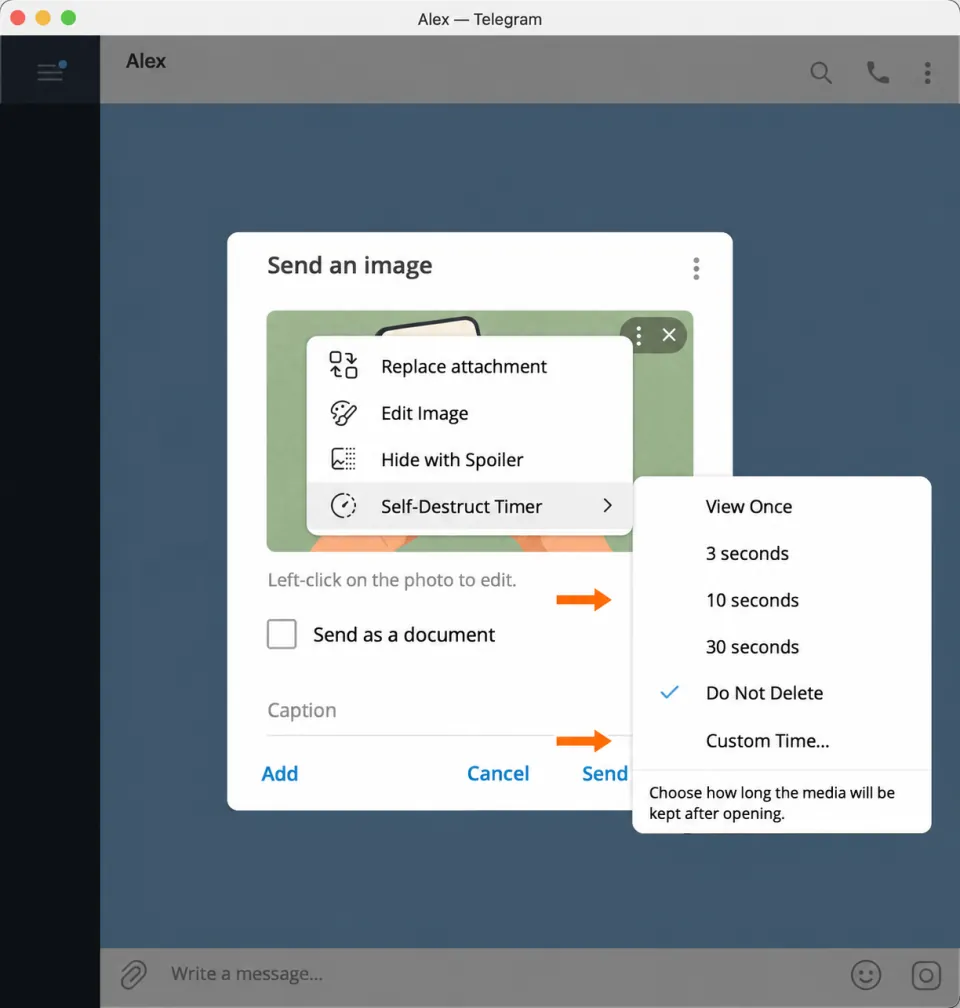
4. Click “Send” and check the message in the chat. The selected time appears in both the preview and the sent photo. In our example, it is 10s. The countdown starts when the recipient opens the image; once the set time is up, the photo becomes unavailable.
Why the disappearing option is missing
The disappearing option is not available for every attachment. It is meant for photos and videos in a private chat with another person. If you cannot find it, the reason may be how you are sending the photo, the type of chat, or your app version.
- “Send as a document” is enabled. Uncheck it in the preview. On your phone, choose the photo from the gallery rather than as a document.
- You have opened a group, channel, bot, or Saved Messages. The feature is meant for private conversations with another person.
- You are editing an old message or preparing a scheduled one. View Once and the timer are selected for a new photo that you send immediately.
- On your phone, you can only see the gallery grid. Tap the photo itself to open it full-size: the View Once button is next to the caption.
You cannot turn a regular photo you have already sent into a view-once photo by editing it. You will need to send it again with the mode selected. The previous copy will remain in the chat until you delete it separately.
The app itself may also lack the setting. Telegram Desktop added the feature in version 7.1, so you will need to update an older version. Telegram Web K, available at web.telegram.org/k/, has no View Once or timer setting for photos. To send one, you will need the app on your computer or phone.
Similar features do not replace viewing limits. A spoiler hides the image until it is clicked, but the revealed photo stays in the conversation. Auto-delete removes messages after a set period, but until then, the photo can be opened repeatedly.
Can you save a disappearing photo?
A photo disappearing from the chat does not necessarily mean the recipient has no copy of it. Telegram restricts saving these images, but it cannot prevent every way of copying them.
Telegram does not offer an option to save either view-once photos or photos with a timer to your gallery. On Android and iPhone, the app also protects these photos against screenshots. On computers, protection depends on the operating system: for example, the Linux version does not block screenshots.
If the recipient will need to return to the image later, it is better to send a regular photo: once a disappearing photo is gone, Telegram has no way to restore it.
Frequently asked questions
How can I view a view-once photo in Telegram again?
Once viewing has ended, Telegram has no way to reopen or restore it. Ask the sender to send the photo again.
Can I send a view-once photo to a group or channel?
No. View Once for photos is available in private chats with another person. In a group or channel, a spoiler or auto-delete will not give you the same result.
Will the original photo disappear from my gallery?
No. The photo becomes unavailable in Telegram after viewing or when the timer runs out. If you chose it from your gallery, the original file stays on your device.
Do I need a Secret Chat for a self-destructing photo?
No. You can send a view-once photo or a photo with a timer in a regular private chat. You do not need to set up auto-delete for the whole conversation.
Can I send a disappearing video the same way?
Yes, both modes also work for videos. In a private chat, choose a video from the attachment menu, open its options in the preview, and select View Once or a timer before sending.