
How to create a Telegram channel
Choose between a private and public channel, publish your first post, explore the settings and find your first subscribers. A step-by-step guide with screenshots.

A Telegram channel is a place to publish news, notes or announcements for subscribers. The owner and appointed administrators manage the main feed, so posts do not get buried among participants’ messages as they can in a group chat. You can also connect a discussion group when you want readers to comment.
This guide explains which type of channel to choose, how to create and configure it, and where to find your first readers.
Private or public channel
Your choice depends on who you want to reach. A public channel suits open posts and helps new readers discover your work. A private channel lets you share material with people you give access to.
| Feature | Private channel | Public channel |
|---|---|---|
| Telegram search | Does not appear in ordinary search | Can be found through search |
| Joining | Through an invite link or being added by the owner | Through its public link or search |
| Main link | An invite link generated by Telegram | An address such as t.me/channel_name |
| Purpose | Give selected readers access | Make the channel available to a wider audience |
When a private channel works well
- Paid access to your work. Extra guides, early releases or private livestreams can be reserved for paying subscribers. Telegram supports invite links with a monthly fee in Stars. Choosing private access does not enable payments by itself: you need to set up the subscription separately.
- A course or learning challenge. Keep assignments, resources and announcements together for enrolled participants.
- Team or club announcements. Share meeting schedules, project updates and practical information with colleagues or members. Everyday conversation can stay in a separate group.
- Event updates. Send the program, meeting point and changes to registered guests. Include the channel link in their registration confirmation.
Someone can forward a private channel’s invite link to other people. Join requests let you review new subscribers before granting access.
When a public channel works well
- A personal blog or portfolio. Publish your work, analysis and useful observations so potential readers and clients can discover you.
- Company or product news. Share service updates, new products, operating changes and answers to common questions. Telegram’s official channel, for example, announces updates to the app.
- Local news and events. Collect events, interesting places and announcements for people in your area.
- Topic-based collections. Share jobs, learning resources, book reviews or industry news with people who have a common interest.
You can combine these formats: introduce your work in a public channel, then offer a paid program or members-only posts in a separate private one.
Create your channel
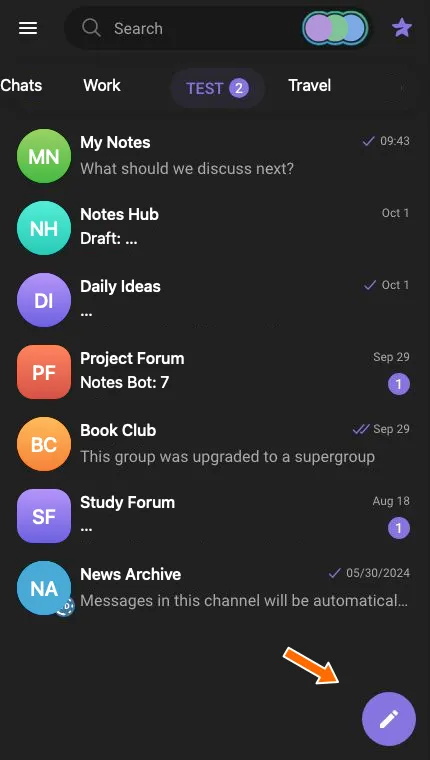
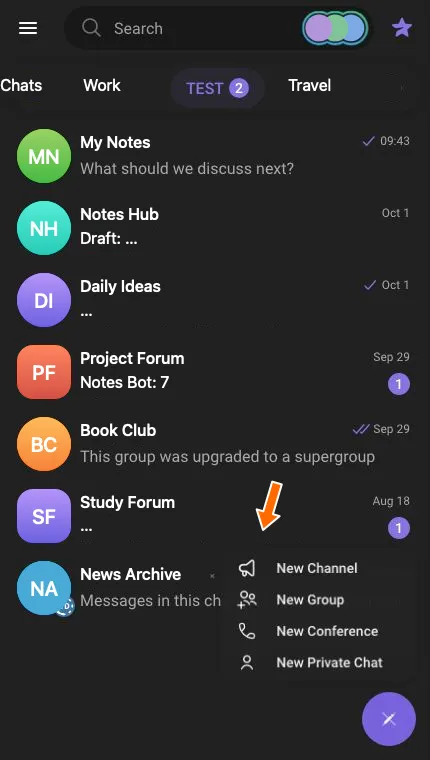
1. Open the chat list and click the pencil button. Select New Channel from the menu.
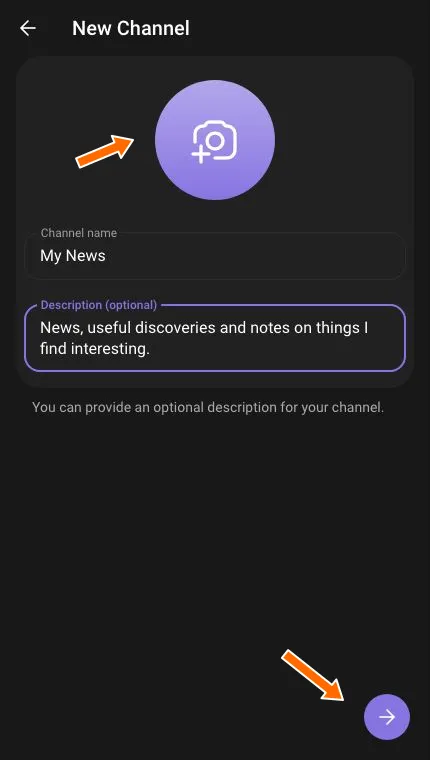
2. Fill in Channel name and Description (optional). The name identifies the channel in the chat list; the description tells readers what to expect. In this example, the name is My News and the description is “News, useful discoveries and notes on things I find interesting.” You can click the camera icon to add a photo, or upload one later.
3. Click the round right-arrow button. Telegram creates the channel. If Add Subscribers opens, you can use the back arrow to leave it without selecting anyone, then open your new channel.
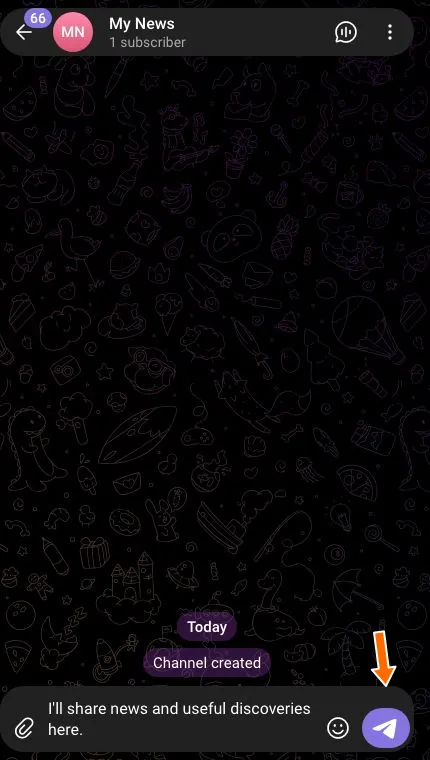
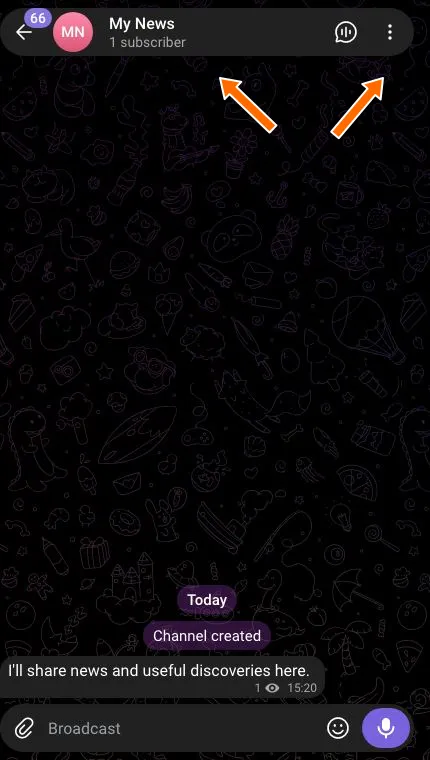
4. Type your first post in Broadcast. A short introduction is enough: “I’ll share news and useful discoveries here.”
5. Click the send button and check that the message appears in the feed. The new channel already works with private access. To make it public, follow Access, join requests and content protection.
Channel settings
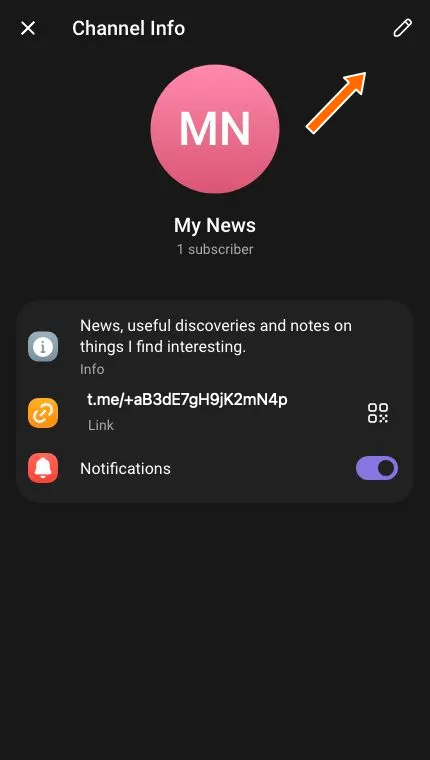
Click the name above the feed, marked in the first-post screenshot. In Channel Info, click the pencil. This opens Edit, where you can change the name, description and photo.
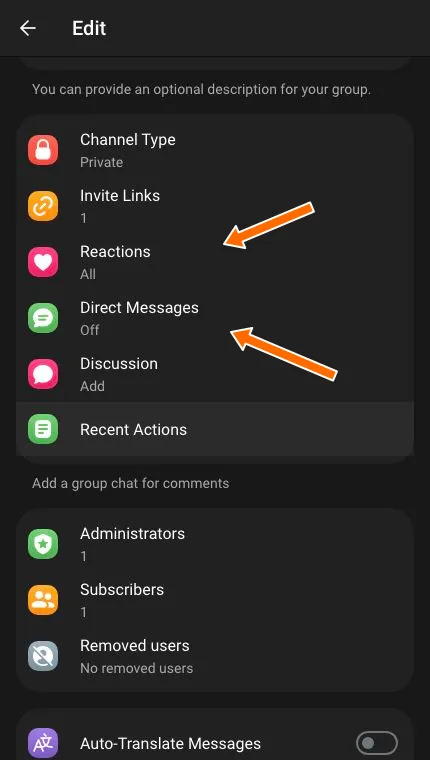
Scroll below the name and description. Here you will find the channel type, invite links, reactions, direct messages, discussion and membership settings.
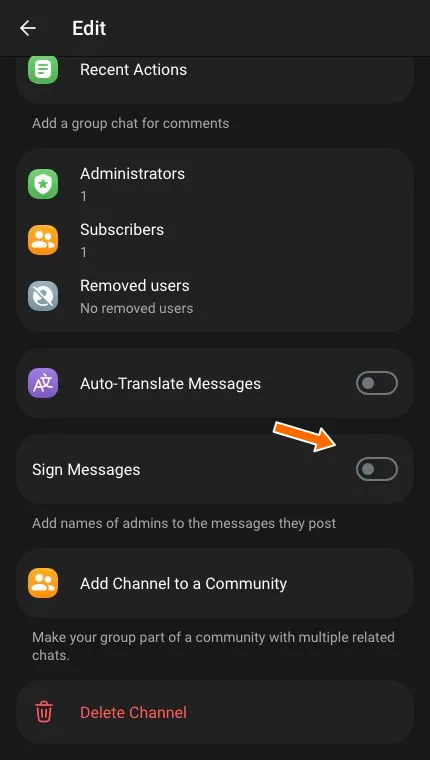
At the bottom are automatic translation, post signatures and the option to add the channel to a community. Each has its own setting or switch.
Access, join requests and content protection
Open Channel Type in the settings list. Choose the appropriate option:
- Private Channel. This is selected when you create the channel. Invite readers using the link Telegram provides.
- Public Channel. Select this option and enter an available username after
t.me/. Wait for Telegram to confirm that the link is available. If it is taken, choose another. Save the change with the round checkmark button at the bottom right.
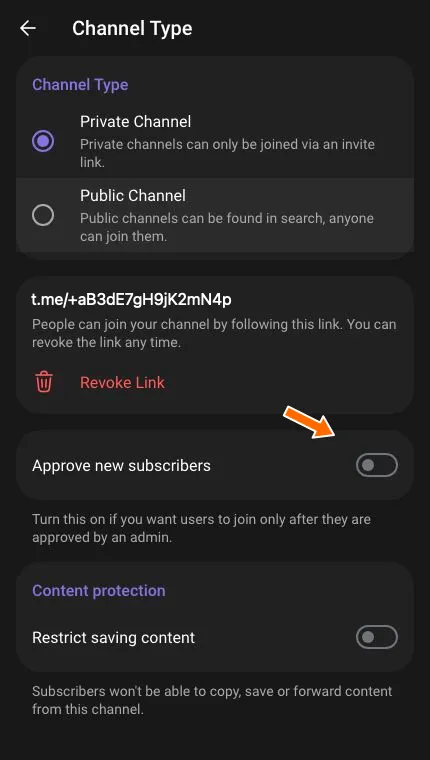
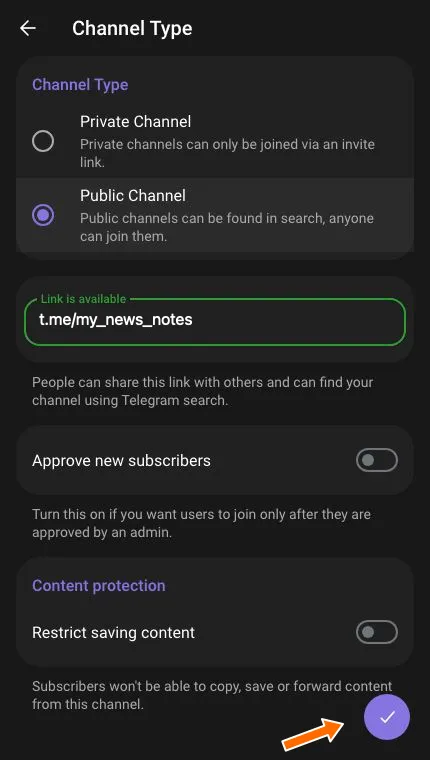
The same screen includes two switches:
- Approve new subscribers. A prospective subscriber submits a request for an administrator to approve or decline. This is useful for a private club or course. It does not make a public link private: choose a private channel when access to the material needs to be restricted.
- Restrict saving content. Limits copying, saving and forwarding through Telegram. This can help with subscriber-only material, for example. In a public channel, it also makes it harder for readers to share your posts.
Invite links and paid subscriptions
Open Invite Links in the settings list. You can copy the main invitation here. To make an additional one, click Create a New Link.
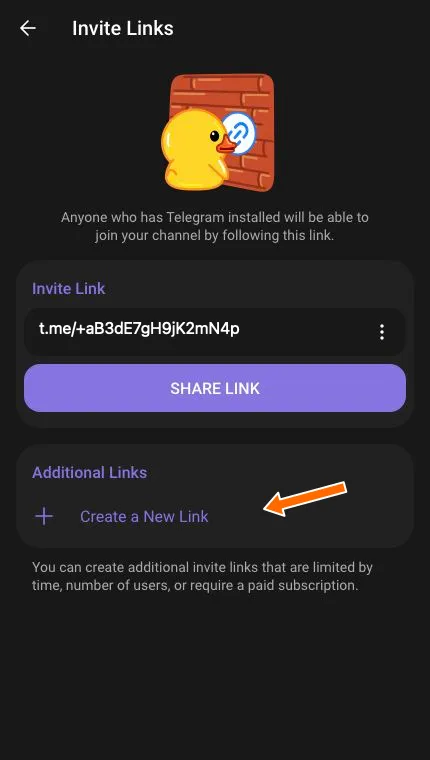
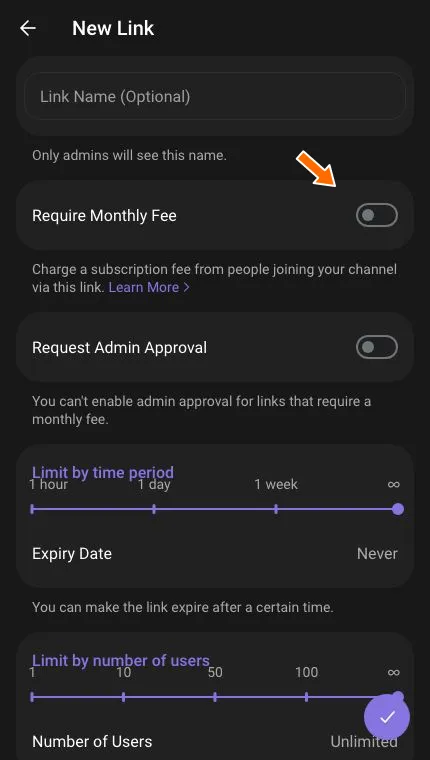
An additional link can have:
- Link Name (Optional), visible only to administrators, such as “Website” or “Newsletter”. Use it to distinguish subscriber sources.
- Limit by time period, after which the link stops working.
- Number of Users: a limit on how many people can join through it. This limits use of the invitation, not how long existing subscribers can stay.
- Request Admin Approval for people who arrive through that particular link.
- Require Monthly Fee in Telegram Stars for access to private material. Manual approval is unavailable for a paid subscription link.
You can revoke a link if you no longer need it or it reaches the wrong audience. Revoking it prevents new joins through that link; removing people who have already joined is a separate action. A QR code makes the link easier to use in printed materials.
Reactions, messages and comments
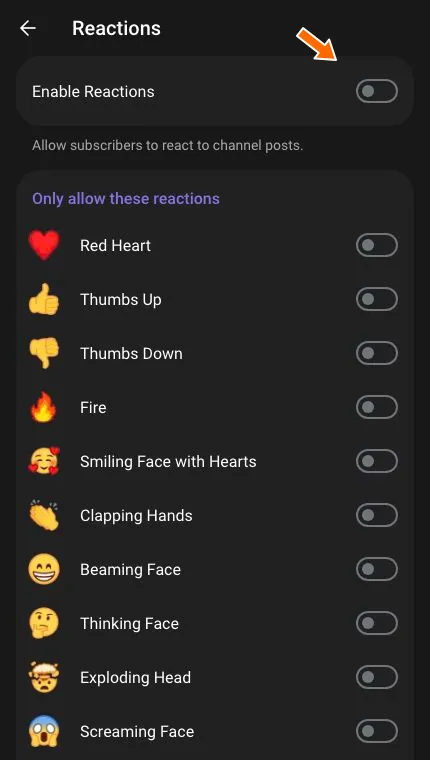
Open Reactions in the settings list to collect quick feedback on posts. Enable reactions and choose suitable emoji: a news channel might keep a few clear options. Telegram also has paid reactions in Stars to support creators; check their availability and settings in your client.
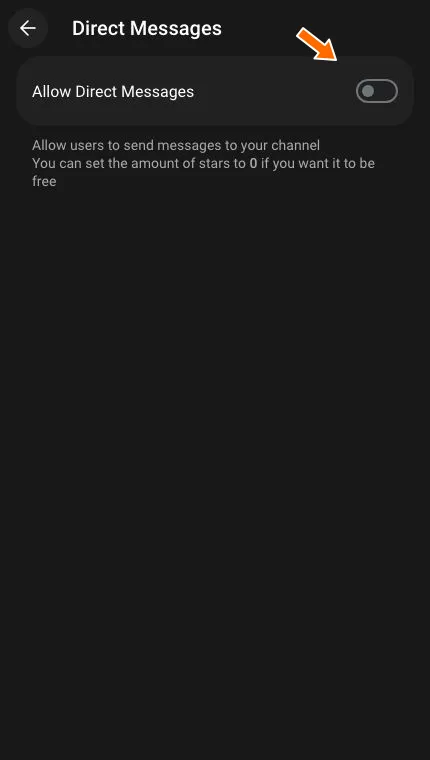
Direct Messages is directly below Reactions in the same list. It lets subscribers have private conversations with the channel, which is useful for questions, feedback and suggestions. These messages arrive separately from the owner’s personal chats. Use Allow Direct Messages to turn the feature on. Set the fee to zero for free messages; Telegram also lets you charge for each message.
Discussion, below Direct Messages in the settings list, links the channel to a group for comments. Choose a suitable group or create a new one. Channel posts are automatically forwarded there, and readers can discuss them under the original posts. See How to enable comments in a Telegram channel for the full illustrated procedure.
Administrators and subscribers
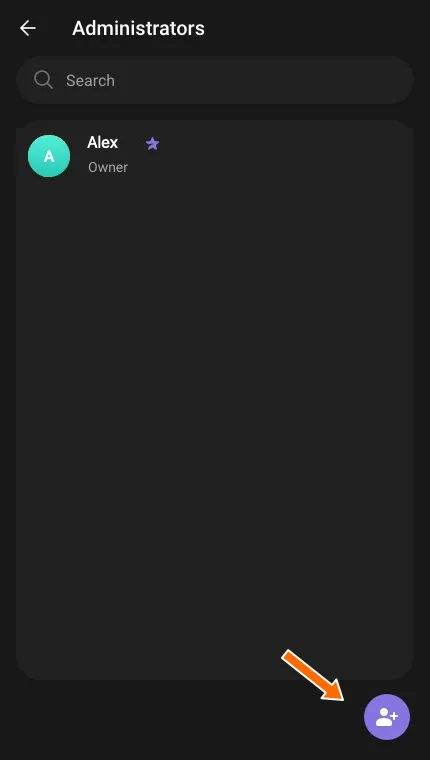
Use Administrators in the settings list to manage the channel’s team. Add helpers and assign the permissions they need: publishing or editing posts, managing subscribers or appointing other administrators. Give each person the rights their work requires. A channel run by one author does not need additional administrators.
Subscribers and Removed users, below Administrators in the settings list, control membership. Subscribers shows your audience and lets you manage members. Removed users lists blocked people; use it when you need to deny someone access or later lift that restriction.
Recent Actions, above Administrators in the settings list, records who changed settings, edited or deleted posts, and managed members during the last 48 hours. This helps when several people run the channel.
Signatures, translation and communities
Sign Messages, in the lower settings, adds administrators’ names to posts. It is useful for an editorial team with several authors. A basic signature contains the administrator’s name; displaying the author’s personal profile is a separate option. Leave profile display off if you want to publish only on behalf of the channel.
Auto-Translate Messages, also in the lower settings, helps readers see posts in their own language. The author enables translation for the audience, while readers can return to the original. Availability depends on the channel’s level and subscriber boosts.
Add Channel to a Community, in the lower settings, connects related channels, groups and bots. A learning project, for example, might have an announcements channel, several class groups and a bot. A Telegram community helps members find these related chats. Consider who will be able to see and join them before adding them. You can skip this setting for a standalone channel.
Auto-delete, notifications and other features
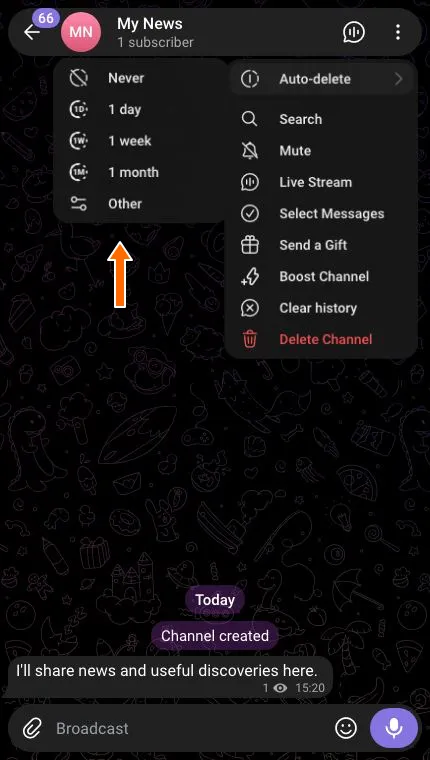
Click the three dots above the feed, marked in the first-post screenshot. Select Auto-delete to see the available periods.
Auto-delete sets a lifetime for new messages. Once enabled, new posts disappear for participants when the timer expires; older messages remain. This suits short-lived announcements. Leave it set to Never if your channel should preserve articles and useful resources.
Notifications in Channel Info, or Mute in the menu, changes notifications for your account. It does not switch them off for every subscriber. Live Stream starts a live broadcast.
As the channel grows, you may need other tools:
- Appearance and stories. Colors, backgrounds, emoji status and other features unlock as the channel’s level increases. Available options depend on its level and the Telegram app.
- Statistics. When Telegram makes this available, it helps you assess views, audience growth and how posts are shared. A new channel may not have this section.
- Monetization. Paid invitations, Star reactions and paid messages are enabled separately. Creating a channel or choosing private access does not automatically make it paid.
Delete Channel in the lower settings removes the channel itself, while Clear History removes messages. Neither command is needed to change the name, access or appearance.
Find your first subscribers
Add a few useful posts before inviting readers. A local channel, for example, could start with places to visit at the weekend and a review of a new café. Pin a short introduction with links to useful posts so visitors can see why they might want to subscribe.
Start with people and places that already have a connection to your topic:
- Friends, colleagues and clients. Invite people who might find the material useful. Explain what you will publish and share a link so they can decide whether to join. For a course or event, include the invitation in the email sent after registration.
- Your website and other social accounts. Introduce the channel on social media, add it to your website or mention it in your newsletter. Show the benefit instead of just saying “Subscribe”: “I’ve collected family-friendly walking routes and will keep adding more.”
- Your Telegram profile. If you run a public channel, add it to your profile. Telegram supports a channel section with a preview of the latest post, so profile visitors can open your work.
- Relevant communities. Join discussions, answer questions and share a useful post where the rules allow links. A helpful answer in a gardening community makes more sense for a gardening channel than advertising in unrelated chats.
- Authors with related interests. Suggest a joint guide, a guest article or a mutual recommendation when it would help both audiences. Someone writing about walks could plan a route with an architecture writer. A useful piece of work can give even a new channel a reason to collaborate.
- Events and physical locations. Put a QR code on a business card, presentation, shop counter or event handout. Explain what people will find: schedules, collections, news or answers to questions.
A public channel may also attract readers through search and Telegram’s similar-channel recommendations. These are selected automatically, so do not rely on them alone when launching.
Do not send unsolicited invitations to strangers or add people without their consent. Telegram warns that unwanted messages can lead to account restrictions. Buying bots to increase the subscriber count will not tell you whether people find your posts useful.
Troubleshooting
The continue button does not appear. Check that you entered a channel name and that no field shows an error. Shorten text that exceeds the limit.
The public link is taken or invalid. Change the username in the link. It uses Latin letters, numbers and underscores. Changing the channel’s display name does not free an address someone else owns. You can keep private access if you do not need a public address yet.
Telegram will not let you create a channel. Read the specific error. An account restriction, a channel limit and an unavailable public address require different responses. If you think your account was restricted by mistake, contact the official @SpamBot. It lets you check and appeal a restriction; it does not guarantee that Telegram will lift it.
Frequently asked questions
Can I create a channel on Android or iPhone?
Yes. Telegram's mobile apps support channel creation, so you do not need a computer. You can change the name, description and access type after creating the channel.
How do I create a private channel?
In the procedure shown here, a new channel is already private. Open Channel Type to check. Private channels do not appear in ordinary search; readers need an invite link or being added by the owner.
How do I make my channel public?
Choose public access for the existing channel and enter an available username for its link. The change takes effect after you save. The switch and address field are shown in the access settings.
Where can I find my channel's link?
Look in Channel Info. A private channel has an invitation; a public channel has an address with its chosen username. You can make additional invite links for different places where you share the channel.
How do I enable comments on posts?
Link a discussion group to the channel. See How to enable comments in a Telegram channel for the complete procedure with screenshots.
Why won't Telegram let me create a channel?
Your account may be restricted or may have reached a channel limit. An unavailable public address is a separate issue. Follow the specific message Telegram displays; see Troubleshooting for the different cases.